

For avid readers, borrowing eBooks from the local library without leaving home has become one of the most convenient ways to enjoy literature. With the Libby app and a compatible Kindle device, users can check out digital books for free and read them comfortably on their preferred eReader. The process is straightforward once understood, and it combines the accessibility of public libraries with the ease of Amazon’s Kindle platform.
TL;DR: Libby allows users to borrow free eBooks from their local library and send them directly to a Kindle device. After adding a valid library card to Libby, users can browse, borrow, and choose the “Read with Kindle” option, which redirects to Amazon for delivery. Once completed, the book appears on the Kindle just like any purchased title. As long as the loan period is active, the book can be read freely without cost.
What Is Libby?
Table of Contents
Libby is a free app developed by OverDrive that connects readers to digital collections from their local libraries. Instead of physically checking out books, users can borrow:
- eBooks
- Audiobooks
- Magazines
Libby works on smartphones, tablets, and web browsers. For Kindle users in the United States, it also enables seamless delivery of borrowed eBooks to Kindle devices or the Kindle app.
The key requirement is a valid library card from a participating library. Most public libraries in the U.S. support Libby, making the service widely accessible.
What You Need Before Getting Started
Before borrowing a free library book on Kindle through Libby, users should ensure they have the following:
- A library card from a participating library
- The Libby app installed on a phone or tablet (or access via browser)
- An Amazon account
- A Kindle device (or Kindle reading app)
It is important to note that Kindle compatibility for Libby books is currently available only in the United States. Readers in other regions may still read in the Libby app but cannot send books to Kindle devices.
Step-by-Step Guide: How to Use Libby on Kindle
1. Download and Set Up the Libby App
The first step is downloading the Libby app from the Apple App Store, Google Play Store, or accessing it through a web browser at libbyapp.com.
When opening the app for the first time, users will be prompted to:
- Find their library by name or location
- Enter their library card number
- Create a Libby account (optional but helpful for syncing across devices)
Once logged in, the user gains immediate access to the library’s digital catalog.
2. Browse and Borrow a Book
With access established, users can browse the catalog using search tools or curated categories. Filters allow sorting by:
- Availability (e.g., “Available Now”)
- Format (e.g., Kindle)
- Genre
- Popularity
When a desired title is found, users tap Borrow. If the book is currently unavailable, they can place a hold and receive notification when it becomes available.
Each library sets its own loan period, typically ranging from 7 to 21 days. The borrower may choose the loan length if multiple options are available.
3. Select “Read With Kindle”
After borrowing the book, Libby offers several reading options. To send the book to a Kindle device, the user must choose:
Read With Kindle
This action redirects the user to the Amazon website. Here, they must:
- Sign into their Amazon account
- Select the preferred Kindle device
- Click Get Library Book
This completes the transfer process. The book will be delivered via Wi-Fi to the selected Kindle device.
4. Sync Your Kindle
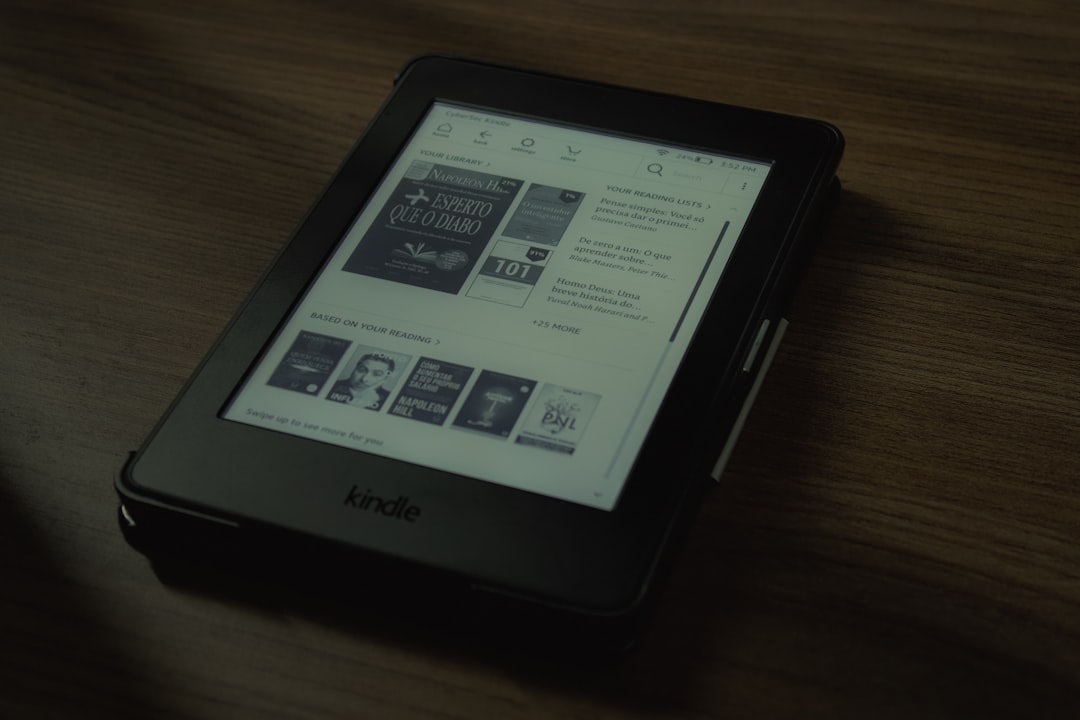
On the Kindle device, users should ensure Wi-Fi is enabled. Then they can either:
- Wait for automatic delivery, or
- Tap Sync from the menu settings
The borrowed library book will then appear in the digital library alongside purchased books. It behaves like any regular Kindle book, with full access to:
- Font adjustments
- Highlighting and notes
- X-Ray (if supported)
- Whispersync
Managing Loans and Returns
One of the most convenient aspects of Libby is automatic returns. At the end of the loan period:
- The book is automatically removed from the Kindle device.
- No late fees are charged.
- The license returns to the library for other readers.
If a user finishes early, they can manually return the book through Amazon:
- Go to Manage Your Content and Devices
- Locate the library title
- Select Return this book
Returning early is considerate, as it allows other library patrons to access the book sooner.
Placing Holds and Managing Waitlists
Because libraries purchase a limited number of digital licenses, popular titles may have waitlists. When placing a hold, Libby provides an estimated wait time.
Users can also:
- Delay delivery if the book becomes available at an inconvenient time
- Suspend a hold without losing their place in line
- Receive notifications by email or app alerts
This flexible system makes managing multiple loans simple and stress-free.
Tips for Getting the Most Out of Libby on Kindle
Use Multiple Library Cards
If eligible for more than one library system (for example, city and county libraries), users can add multiple cards in Libby. This expands the available catalog significantly.
Filter for Kindle Format
Not all eBooks are compatible with Kindle. Filtering for “Kindle” format ensures smooth delivery and avoids confusion.
Take Advantage of Samples
Libby allows users to read a sample before borrowing. This helps prevent using a loan on a book that may not meet expectations.
Enable Notifications
Push notifications or email alerts help users track:
- Upcoming due dates
- Hold availability
- Loan expirations
Common Issues and Troubleshooting
While the system is generally smooth, occasional issues may arise.
Book Not Showing on Kindle
Ensure that:
- The correct Amazon account was used
- The correct Kindle device was selected
- Wi-Fi is enabled
- The device has been synced
“Read With Kindle” Option Missing
This may occur if:
- The user is outside the United States
- The title is not available in Kindle format
Expired Loan Still Appearing
Sometimes expired books remain visible but cannot be opened. A quick device sync usually resolves the issue.
Why Readers Love Using Libby With Kindle
Combining Libby with Kindle offers several advantages:
- No cost for borrowing books
- No late fees
- Comfortable eInk reading experience
- Access to thousands of titles
- Environmentally friendly alternative to printed copies
For budget-conscious readers or those who read frequently, this integration makes it possible to enjoy a steady stream of books without ongoing expenses.
Conclusion
Using Libby to borrow free library books on a Kindle device is a practical and user-friendly process. After connecting a library card, borrowing a book, and selecting the “Read With Kindle” option, the digital library experience becomes seamless. The integration between Libby and Amazon ensures that users can enjoy the familiarity of Kindle’s reading features without paying for each title. With automatic returns and no late fees, it remains one of the most accessible and cost-effective ways to read in the digital age.
Frequently Asked Questions (FAQ)
-
Is Libby completely free to use?
Yes. Libby is free, but it requires a valid library card from a participating public library. -
Can Libby books be read on any Kindle?
Most modern Kindle devices support library books through Amazon. However, compatibility is limited to U.S. libraries. -
Do library books stay on Kindle forever?
No. They automatically expire at the end of the loan period and are removed from access. -
Can notes and highlights be kept after the book is returned?
Yes. Kindle typically saves annotations to the user’s Amazon account, even after the book is returned. -
What happens if Wi-Fi is turned off when the loan expires?
The book may remain visible, but once the Kindle reconnects to Wi-Fi and syncs, access will be removed. -
Can audiobooks from Libby be sent to Kindle?
No. Audiobooks must be listened to within the Libby app, not on Kindle eReaders. -
Is there a limit to how many books can be borrowed?
Yes. Each library sets borrowing limits, typically between 5 and 20 items at a time.
