

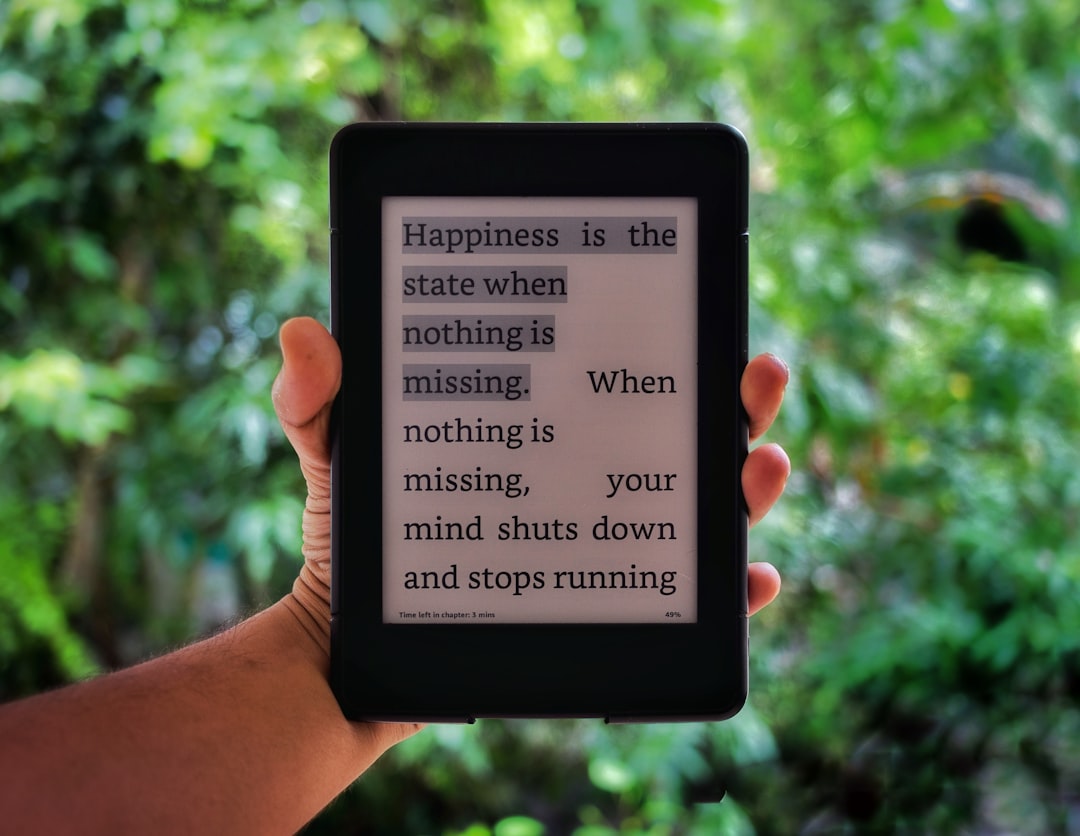
So you want to take a screenshot on your Kindle. Maybe you found a favorite quote. Maybe you want to save a page for later. Or maybe you just want to show a friend what you’re reading. Good news. It’s easy. You just need to know where to tap or what to press.
TLDR: Taking a screenshot on a Kindle depends on your model. Most Kindle eReaders let you tap two opposite corners of the screen at the same time. Kindle Fire or Fire tablets use button combinations like Power + Volume Down. Screenshots are saved automatically and can be accessed by connecting your device to a computer.
First, Know Your Kindle
Table of Contents
Not all Kindles work the same way. Amazon has released different models over the years. The method depends on your device.
There are two main types:
- Kindle eReaders – These use e-ink screens. Like Kindle Paperwhite or Kindle Oasis.
- Fire tablets – These are full-color tablets. Like Fire HD 8 or Fire HD 10.
The steps are different for each. Let’s break them down.
How to Screenshot on Kindle eReaders
This includes devices like:
- Kindle Paperwhite
- Kindle Oasis
- Basic Kindle models
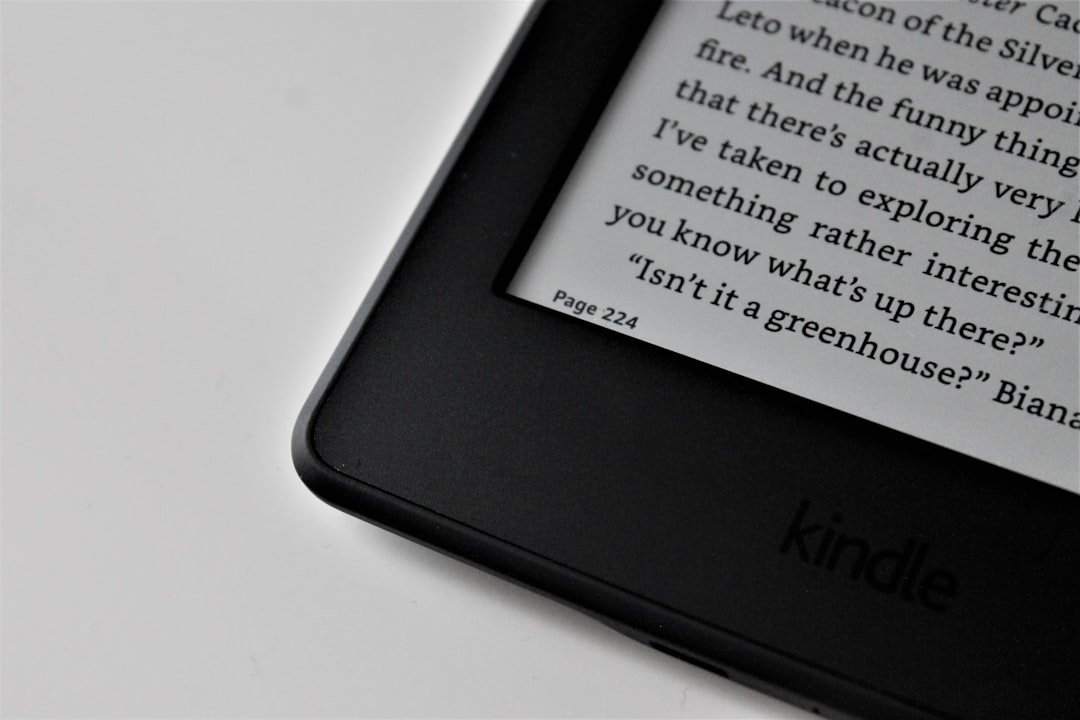
These devices do not have a regular screenshot button. Instead, they use a simple screen tap trick.
The Two-Corner Tap Method
Here’s how to do it:
- Open the page you want to capture.
- Tap two opposite corners of the screen at the same time.
- The screen will briefly flash.
That flash means success. Your screenshot has been saved.
For example:
- Top left + bottom right
- Top right + bottom left
Tap both corners at the same time. Use two fingers. Don’t press too long. Just a quick, firm tap.
What If It Doesn’t Work?
Don’t worry. Try again.
- Make sure you tap at the exact same time.
- Tap closer to the corners.
- Use two hands if needed.
Sometimes it takes a few tries. The e-ink screen refresh can feel slow. That’s normal.
Where Are Screenshots Saved on Kindle eReaders?
Your Kindle saves screenshots automatically. But you won’t see them in your library.
Here’s how to find them:
- Connect your Kindle to a computer using a USB cable.
- Open the Kindle folder on your computer.
- Look for image files in the main directory.
Screenshots are usually saved as PNG files.
You can:
- Copy them to your computer
- Edit them
- Share them
- Print them
Simple.
How to Screenshot on Fire Tablets
Fire tablets work more like regular Android devices. So the process is different from eReaders.
Here’s the standard button combo method.
Power + Volume Down
- Open the screen you want to capture.
- Press and hold the Power button.
- At the same time, press the Volume Down button.
- Hold for about one second.
You’ll see a quick animation or hear a shutter sound. That means the screenshot was taken.
Where to Find Screenshots on Fire Tablets
It’s much easier here.
Just do this:
- Open the Photos app
- Go to Screenshots album
That’s it.
You can also access screenshots by:
- Connecting the tablet to a computer
- Using cloud storage
- Emailing them to yourself
How to Screenshot Without Buttons (Fire Tablets)
If your buttons are hard to press, there’s another option.
Some Fire tablets support accessibility features that add virtual controls.
Try this:
- Go to Settings.
- Select Accessibility.
- Look for options like assistive tools or screen tools.
Availability depends on your model and software version. Not all Fire tablets support this.
Tips for Better Kindle Screenshots
Want cleaner screenshots? Follow these quick tips.
1. Adjust Brightness
If you’re using a Fire tablet, reduce glare. Adjust brightness before capturing.
2. Clean the Screen
Smudges show up in photos of the screen. Especially with e-ink devices.
3. Go Full Screen
Hide menus before taking the shot. Tap the center of the page on eReaders to remove toolbars.
4. Crop Later
You don’t need a perfect screenshot. Crop it later using any photo editor.
Can You Screenshot Kindle Books?
Yes. But there are limits.
Most Kindle books allow screenshots for personal use. However:
- You cannot legally share full books.
- Copyright rules still apply.
- Use screenshots for personal reference.
Always respect the author’s rights.
Why Take Screenshots on Kindle?
People do it for many reasons.
- Save favorite quotes
- Share book passages with friends
- Keep research notes
- Post short excerpts on social media
- Troubleshoot technical issues
Screenshots are quick. And useful.
Troubleshooting Common Problems
The Screen Doesn’t Flash (eReader)
This usually means the tap didn’t register.
- Try tapping harder.
- Make sure you’re using opposite corners.
- Restart your device.
Buttons Not Working (Fire Tablet)
If nothing happens:
- Hold the buttons slightly longer.
- Press both at the exact same time.
- Check if buttons are physically stuck.
Can’t Find the Screenshot File
On eReaders:
- Reconnect to the computer.
- Refresh the folder.
- Search for PNG files.
On Fire tablets:
- Check the Photos app.
- Look inside the Screenshots folder.
How to Transfer Kindle Screenshots
There are a few easy ways to move your images.
Using a USB Cable
- Plug your Kindle into your computer.
- Open the device folder.
- Drag and drop the screenshot files.
Using Email (Fire Tablets)
- Open the screenshot.
- Tap the share icon.
- Email it to yourself.
Using Cloud Storage
If your Fire tablet has cloud apps installed, upload directly from Photos.
Do Older Kindle Models Work the Same Way?
Mostly, yes for eReaders.
Older Kindle models also use the two-corner tap method. However, very old versions may require special steps or may not support screenshots at all.
If unsure:
- Check your model in Settings.
- Look up your specific generation.
- Try the corner tap method first.
Fun Fact About Kindle Screenshots
On e-ink Kindles, screenshots capture exactly what you see. Including:
- Battery icon
- Wi-Fi status
- Progress bar
So if you want a clean quote image, hide the menus first.
Quick Reference Guide
Here’s a super simple summary.
- Kindle Paperwhite / Oasis: Tap two opposite corners.
- Basic Kindle: Same two-corner tap method.
- Fire HD Tablets: Press Power + Volume Down.
- Find files (eReader): Connect to computer.
- Find files (Fire): Check Photos app.
Final Thoughts
Taking a screenshot on any Kindle is easy once you know the trick. Some models use finger taps. Others use button combos. Both take just seconds.
Start with identifying your device. Practice the method once or twice. Then you’re set.
Now you can save quotes. Capture ideas. Share pages. Or keep digital memories of your favorite books.
Happy reading. And happy screenshotting.
