

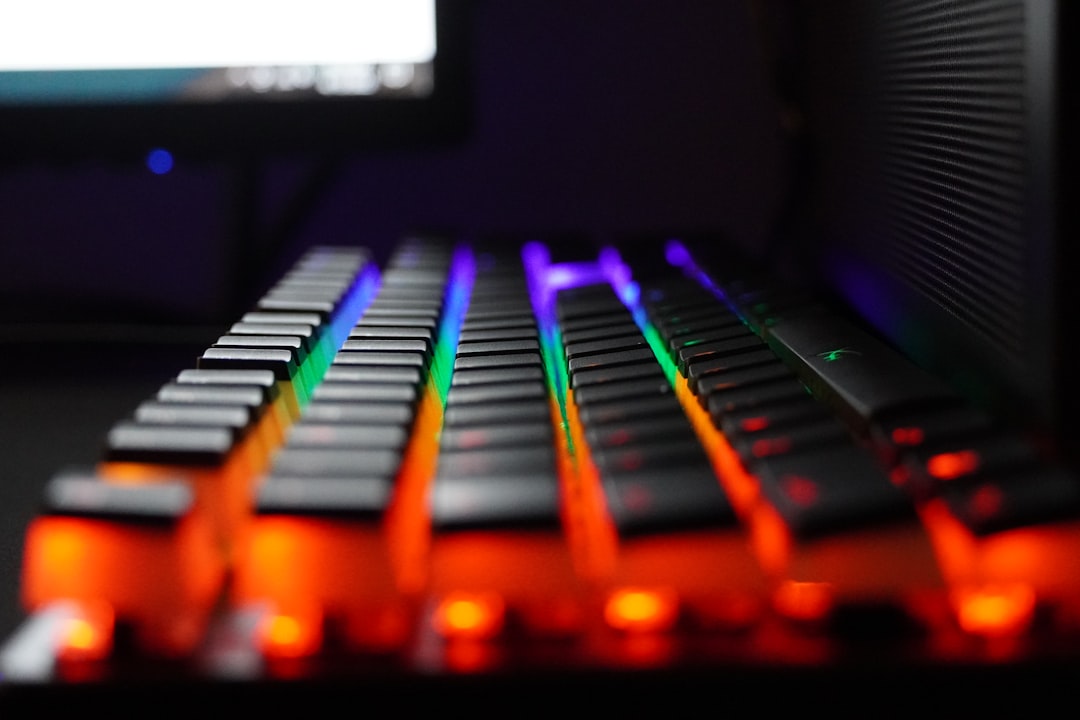
The Arzopa K81 is more than just a keyboard. It is a glowing light show under your fingertips. With bright RGB effects and deep customization options, you can make it match your mood, your game, or your entire desk setup. The best part? Changing the lighting in the app is simple. You do not need to be a tech wizard. Just a few clicks, and your keyboard becomes uniquely yours.
TLDR: The Arzopa K81 RGB lighting can be fully customized using the official app. You can change colors, effects, brightness, speed, and even assign lighting to specific keys. Download the app, connect your keyboard, and explore the lighting tab to start customizing. Save your profiles so you can switch styles anytime.
Getting Started with the Arzopa K81 App
Table of Contents
First, you need the official Arzopa keyboard software. Head to the Arzopa support page and download the version that matches your system. Install it. Then connect your K81 using the USB cable. Wireless works too, but wired is better for setup.
Open the app. The keyboard should appear on the home screen. If it does not, unplug and reconnect. Simple fixes usually work.
Once connected, click on the Lighting or RGB tab. This is where the magic happens.
Understanding the Lighting Dashboard
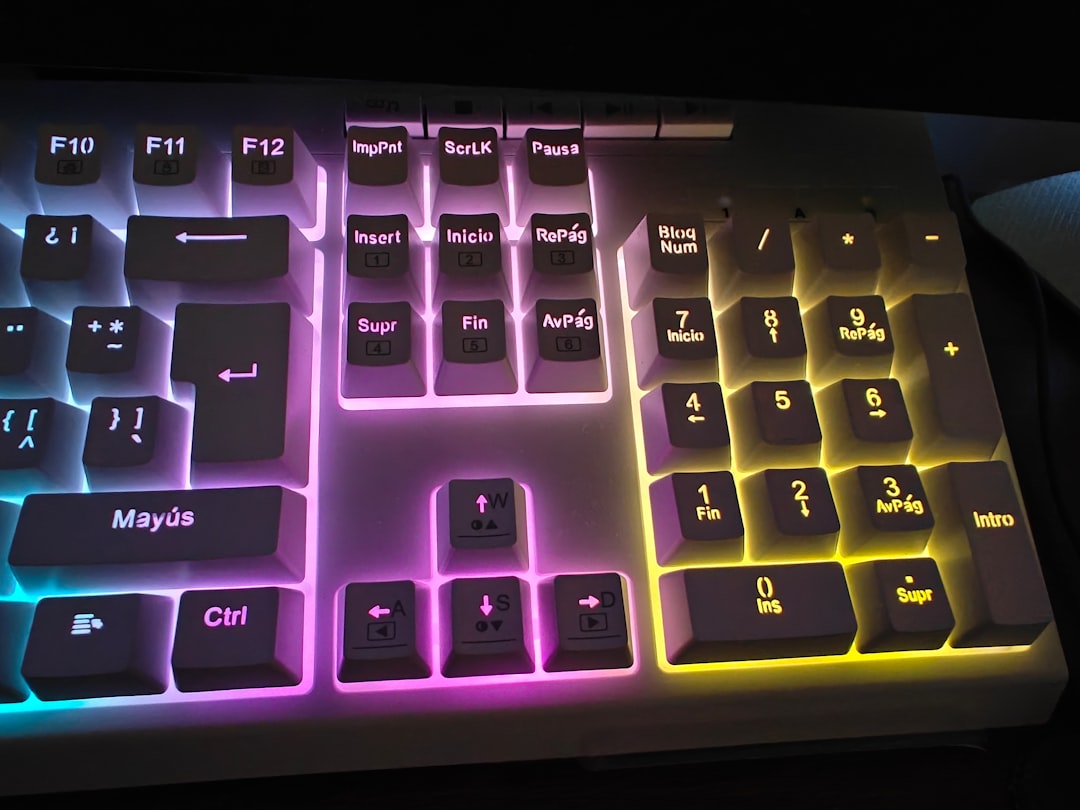
When you open the lighting section, you will see several options. It may look busy at first. Do not worry. It is easier than it looks.
Here is what you will usually find:
- Lighting Effects Menu – Choose preset animations.
- Color Palette – Pick custom colors.
- Brightness Slider – Adjust glow intensity.
- Speed Control – Change animation speed.
- Key Selection Mode – Customize individual keys.
- Profile Manager – Save different setups.
Think of it like a control room for your keyboard.
Choosing a Preset Lighting Effect
If you want fast results, start with presets. Presets are ready-made lighting effects. Just click and apply.
Popular preset modes include:
- Static – One solid color.
- Breathing – Fades in and out.
- Rainbow Wave – Colors flow across the keyboard.
- Reactive – Keys light up when pressed.
- Ripple – Light spreads from pressed keys.
- Marquee – Lights move in one direction.
Select a mode. Click Apply. Your keyboard updates instantly.
This is the easiest way to refresh your setup in seconds.
Customizing Colors Like a Pro
Now it gets fun.
If presets feel basic, switch to custom mode. Use the color palette tool. You can:
- Click on a color wheel.
- Enter specific RGB values.
- Create multicolor gradients.
Want a soft pink vibe? Slide toward red and lower brightness. Want icy blue? Increase blue and slightly reduce green.
Small adjustments make big differences.
You can also create two-tone or three-tone color flows. This works great with wave or breathing effects. Mix contrasting colors for bold energy. Or use close shades for a smooth, aesthetic glow.
Adjusting Brightness and Speed
Sometimes lighting looks too strong. Or too slow. That is where sliders help.
Brightness Control lets you:
- Dim the keyboard for night use.
- Max it out for daytime visibility.
If you game in the dark, lower brightness saves your eyes.
Speed Control changes animation tempo. Slow speeds feel calm. Fast speeds feel energetic. For competitive gaming setups, faster effects can look more intense.
Play with these settings. Watch your keyboard change in real time.
Per-Key RGB Customization
This is where the K81 truly shines.
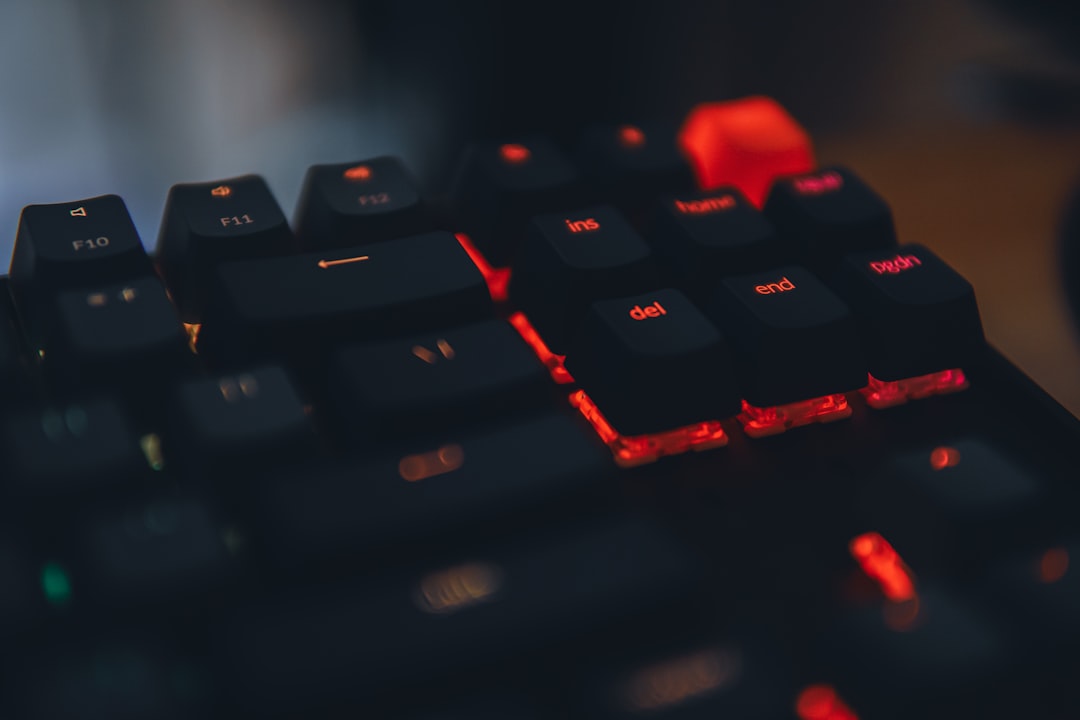
Per-key customization allows you to select individual keys and assign specific colors. For example:
- Highlight WASD in red for gaming.
- Make number keys blue.
- Turn hotkeys green.
- Color-code editing shortcuts.
To do this:
- Enter Key Selection mode.
- Click on a key from the on-screen keyboard.
- Choose a color.
- Apply changes.
You can select multiple keys at once by dragging your mouse across them. This saves time.
This feature is great for gamers, coders, video editors, and creative users. It keeps important keys visible and easy to locate.
Creating and Saving Profiles
Profiles are your best friend.
Instead of changing lighting every time, save different setups:
- Work Mode – Simple white static light.
- Gaming Mode – Bold colors with reactive keys.
- Chill Mode – Soft breathing pastel tones.
- Party Mode – Fast rainbow wave.
To save a profile:
- Customize your lighting.
- Click Save or Create Profile.
- Name it.
- Confirm.
Switch between profiles anytime inside the app. Some keyboards even let you switch profiles using shortcut key combinations.
This makes your lighting adaptable in seconds.
Syncing Lighting with Your Setup
If you love aesthetics, you can match your keyboard with your desk theme.
Try syncing colors with:
- Your gaming mouse.
- Your monitor backlight.
- Your PC case fans.
- Your room LED strips.
Choose similar RGB values for a unified look. For example:
- Cyberpunk theme – Pink and teal.
- Minimal theme – White or soft blue.
- Fire theme – Red, orange, yellow wave.
- Ocean theme – Deep blue and turquoise.
Consistency makes your desk look professionally designed.
Using Reactive Lighting for Gaming
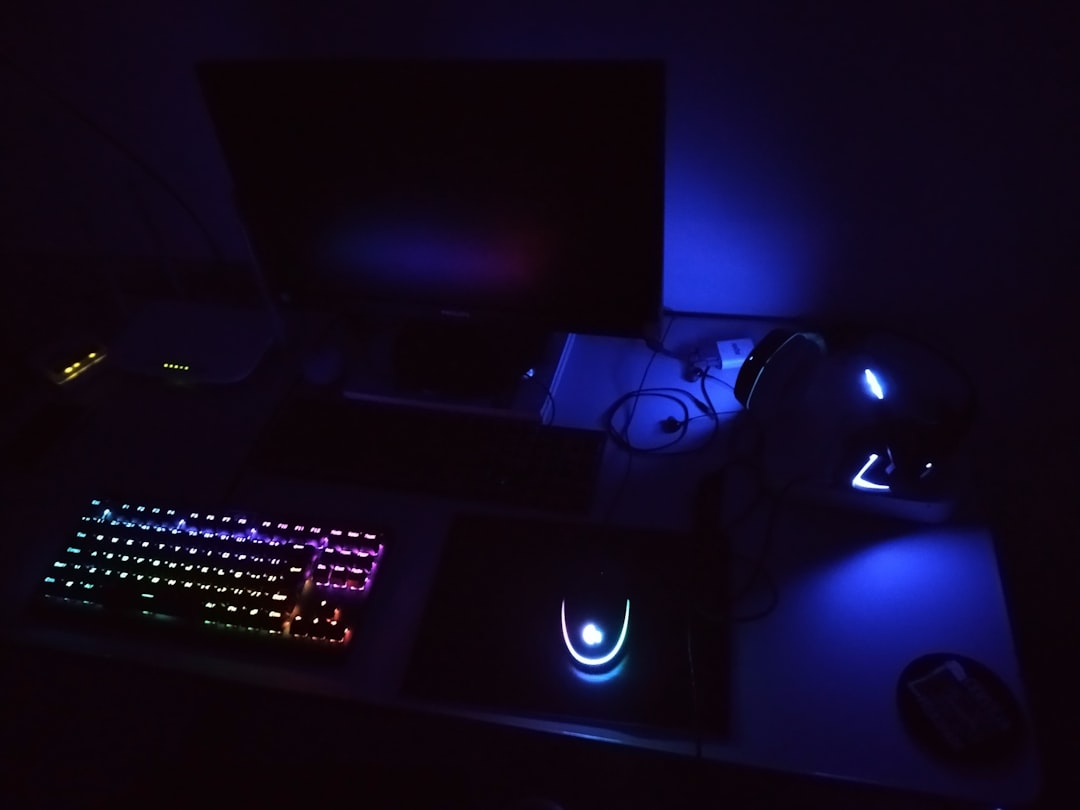
Reactive modes are popular for a reason. They respond when you press a key. It feels interactive. Alive.
For competitive gamers, reactive setups help you track movement. If you press movement keys often, those keys glow repeatedly. It creates a dynamic light pattern during gameplay.
You can also adjust:
- Fade duration.
- Reaction color.
- Ripple size.
Experiment. Find what feels exciting, not distracting.
Troubleshooting Common Issues
Sometimes lighting may not update. Do not panic.
Try these quick fixes:
- Reconnect the keyboard.
- Restart the software.
- Update to the latest firmware.
- Use wired mode during setup.
If specific keys do not change color, ensure you are not in preset mode. Some presets override custom settings.
Also remember to click Apply. It sounds obvious. But it is often forgotten.
Tips for Better RGB Design
Here are simple design tips to level up your lighting game:
- Do not overuse too many colors at once.
- Stick to 2–3 main colors.
- Adjust brightness for comfort.
- Match lighting to your activity.
- Save backups of favorite profiles.
Simple designs often look cleaner and more premium.
If your desk looks too busy, reduce animation speed. Or shift to static mode.
If it feels dull, add a subtle breathing effect instead of full rainbow.
Why Custom Lighting Matters
RGB is not just decoration. It is expression.
Your keyboard is something you use every day. Personalizing it makes your setup feel more yours. It can boost focus. It can improve gaming clarity. It can even improve mood.
And honestly, it just looks cool.
The Arzopa K81 app gives you full control. Presets for speed. Custom mode for creativity. Profiles for flexibility.
Once you learn the basics, changing your lighting takes less than a minute.
Final Thoughts
Customizing RGB lighting on the Arzopa K81 is easy and fun. Download the app. Explore the lighting tab. Test different presets. Adjust colors. Save profiles.
Start simple. Then experiment.
Your perfect keyboard glow is just a few clicks away.
Make it bold. Make it subtle. Make it yours.
