

An iPad that turns on but does not respond to touch can feel confusing because the display may look perfectly normal while taps, swipes, and gestures do nothing. In many cases, the issue is caused by software glitches, dirty glass, accessories, charging interference, or a frozen app rather than a permanently broken screen. A careful step-by-step approach can help identify whether the problem is temporary or whether the device needs professional service.
TLDR: If an iPad display is working but not responding to touch, the user should first clean the screen, remove the case or screen protector, force restart the device, and disconnect all accessories. If touch works sometimes but not always, software updates, storage cleanup, and settings resets may help. If only part of the screen responds or the iPad has been dropped or exposed to liquid, the digitizer or display assembly may need repair.
Why an iPad Screen May Stop Responding to Touch
Table of Contents
The iPad display has multiple layers. The visible screen shows images, while a touch-sensitive layer detects finger input or Apple Pencil movement. When the display is visible but touch does not work, the problem is often linked to the digitizer, software, or something blocking proper contact with the glass.
Common causes include:
- Temporary software freezing after an app crash or system error
- Dirt, oil, or moisture on the screen
- A damaged or poorly installed screen protector
- A tight case pressing against the screen edges
- Charging cable or power adapter interference
- Outdated iPadOS software
- Low storage space causing system lag
- Hardware damage from drops, pressure, or liquid exposure
Because the symptoms can overlap, it is best to start with safe, simple fixes before assuming that the display must be replaced.
1. Clean the Screen Properly
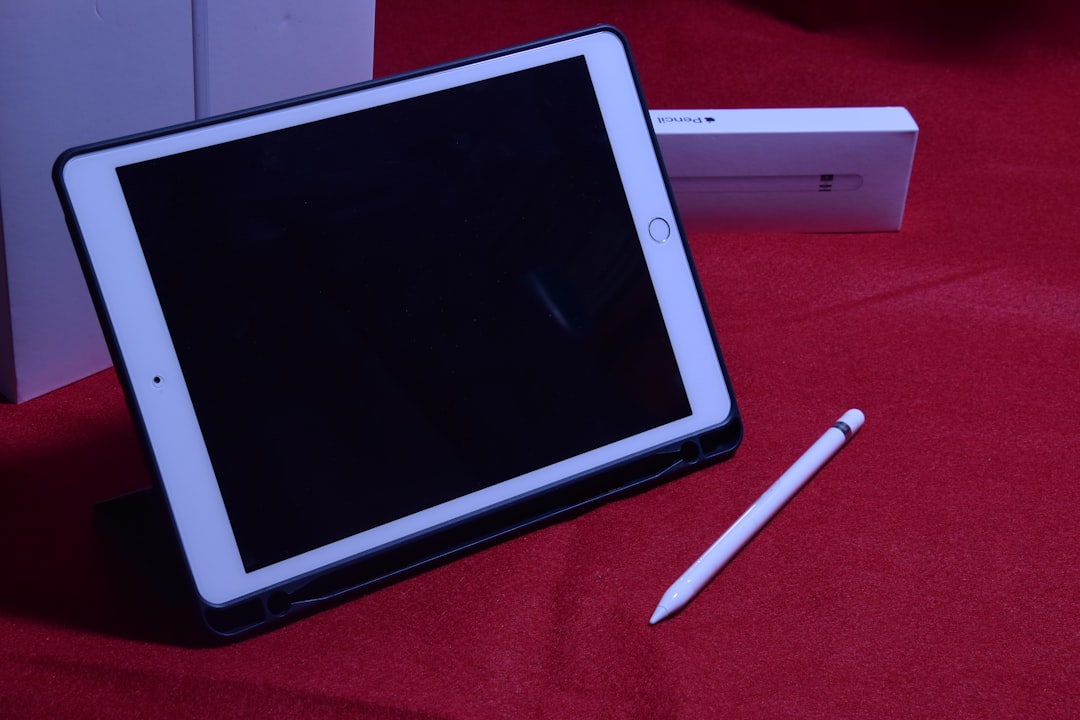
A dirty screen is one of the easiest problems to overlook. Finger oils, dust, sticky residue, water droplets, or lotion can interfere with touch recognition. The iPad may seem broken when the surface simply needs cleaning.
The user should turn the iPad off if possible, unplug all cables, and wipe the screen with a soft, lint-free microfiber cloth. If needed, the cloth can be slightly dampened with water. Harsh cleaners, window spray, bleach, or excessive liquid should be avoided because they can damage coatings or seep into the device.
After cleaning, the screen should be dried completely before testing touch again. If the iPad begins responding normally, the issue was likely caused by surface contamination rather than internal failure.
2. Remove the Screen Protector and Case
A screen protector can cause touch problems if it is cracked, peeling, too thick, misaligned, or trapping air bubbles. Tempered glass protectors sometimes create dead zones, especially near the edges or corners. A case can also press against the display in a way that interferes with touch input.
The user should remove the case first and test the screen. If the problem continues, the screen protector should be removed carefully. Once the bare glass is exposed, the iPad should be tested again by opening apps, typing, swiping between screens, and using gestures from different areas of the display.
If touch works after removing the protector, a new high-quality protector may be installed. However, the screen should be checked for cracks or lifted glass before applying anything new.
3. Force Restart the iPad
If the iPad is frozen, a force restart can clear temporary system errors without deleting data. This is one of the most effective fixes when the screen is visible but the device ignores touch.
For iPad models without a Home button, the user should quickly press and release the Volume Up button, quickly press and release the Volume Down button, then press and hold the Top button until the Apple logo appears.
For iPad models with a Home button, the user should press and hold the Home button and the Top button at the same time until the Apple logo appears.
After the iPad restarts, the user should wait for the lock screen to load fully. If touch now works, the issue may have been a system crash or temporary app conflict.
4. Disconnect Chargers, Cables, and Accessories
Some touch issues appear only while the iPad is charging. Low-quality chargers, damaged cables, ungrounded outlets, USB hubs, or faulty adapters can cause electrical noise that affects the touchscreen. The display may jump, ignore taps, or register touches inaccurately.
The user should unplug the charger and test the iPad on battery power. If touch works normally when unplugged, the charger or cable may be the cause. Testing with an original or certified cable and adapter is recommended. Accessories such as external keyboards, USB-C hubs, game controllers, or dongles should also be disconnected during troubleshooting.
If the charging port contains lint or debris, the iPad may behave unpredictably while connected. The port should be inspected carefully, but metal tools should not be used to clean it.
5. Check Whether the Whole Screen or Only Part of It Fails
The pattern of the problem can reveal a lot. If the entire touchscreen stops responding, software or system freezing may be more likely. If only one strip, corner, or side of the screen does not respond, the issue may involve digitizer damage.
The user can test this by opening the Notes app, drawing across the screen with a finger or Apple Pencil, or moving app icons around the home screen. Any skipped areas, broken lines, or dead zones suggest that the digitizer is not reading input consistently.
If the iPad has recently been dropped, bent, repaired, exposed to moisture, or carried in a tight bag, hardware damage becomes more likely. A display may still show a clear image while the touch layer underneath is damaged.
6. Update iPadOS if Touch Still Works Occasionally
If the iPad responds to touch sometimes, the user should check for software updates. Apple often releases updates that fix bugs, improve stability, and resolve performance issues.
The update can be checked by going to Settings > General > Software Update. If an update is available, the iPad should be connected to Wi-Fi and charged adequately before installation.
If touch does not work well enough to navigate settings, the user may update the device through a computer. On a Mac, Finder can be used. On a Windows PC, Apple Devices or iTunes may be used, depending on the setup. The iPad should be connected with a reliable cable, selected in the computer app, and updated without choosing the restore option unless data has been backed up.
7. Free Up Storage Space
A nearly full iPad can become slow, unstable, and unresponsive. While low storage does not usually disable touch hardware directly, it can make the system lag so badly that taps appear to be ignored.
The user can check storage under Settings > General > iPad Storage. If available space is very low, unused apps, large videos, old downloads, and message attachments can be removed. Offloading unused apps may also help because it frees space while preserving app documents and data.
After freeing storage, restarting the iPad is recommended. The touchscreen should then be tested again across several apps.
8. Close Problem Apps or Remove Recently Installed Apps
Sometimes the touchscreen seems broken only inside one app. For example, a game, browser, drawing app, or streaming app may freeze while the rest of the iPad works normally. In that case, the issue is probably related to the app rather than the display.
The user should force close the app and reopen it. If the problem returns, the app should be updated from the App Store. If it began after a recent app installation, removing that app may resolve the conflict.
If the iPad becomes unresponsive only when using a certain website, video, document, or file, corrupted content may be causing the app to freeze.
9. Adjust Touch Accommodations Settings
iPadOS includes accessibility settings that can change how touch input is recognized. If these settings were enabled accidentally, the device may require longer presses or may ignore repeated taps.
The user should check Settings > Accessibility > Touch > Touch Accommodations. If Touch Accommodations is on, turning it off may restore normal touch behavior. Other settings, such as Hold Duration or Ignore Repeat, can make the screen feel delayed or unresponsive.
This is especially useful to check when the iPad responds, but only after a long press or with inconsistent timing.
10. Reset All Settings
If basic steps do not work and touch still functions enough to navigate menus, resetting all settings may help. This does not erase personal files, photos, or apps, but it does reset Wi-Fi networks, keyboard settings, privacy settings, location settings, and other system preferences.
The user can go to Settings > General > Transfer or Reset iPad > Reset > Reset All Settings. After the iPad restarts, touch performance should be tested again.
This step is useful when a hidden setting, accessibility option, or system preference is causing abnormal behavior.
11. Restore the iPad After Backing Up Data
If the problem persists and software damage is suspected, a full restore may be considered. This erases the iPad and reinstalls iPadOS, so a backup is essential before proceeding. Data can be backed up to iCloud or to a computer.
After backing up, the user may erase the iPad through settings or restore it using a computer. If touch problems remain immediately after a clean restore, before apps and data are added back, hardware failure becomes much more likely.
A restore should not be the first troubleshooting step because it takes time and carries data risk if no current backup exists.
12. When Professional Repair Is Needed
Professional service may be necessary if the iPad has visible cracks, dark spots, ghost touches, flickering, dead zones, liquid exposure, or a display that separates from the frame. It may also be needed if the touchscreen does not respond after cleaning, restarting, updating, and removing accessories.
In many iPad models, the glass and digitizer are part of a complex display assembly. Repair usually requires proper tools, adhesives, calibration, and genuine or high-quality parts. Attempting a repair without experience can damage the battery, display cables, or internal components.
If the iPad is under warranty or covered by AppleCare, the user should check service options before visiting a third-party repair shop. If the device is older, comparing repair cost with replacement value is sensible.
How to Prevent Future Touchscreen Problems
Preventive care can reduce the chance of another touchscreen failure. The iPad should be kept clean and dry, charged with reliable accessories, and protected from bending pressure. A strong case can help, but it should fit correctly and not press against the glass.
Software maintenance also matters. Keeping iPadOS updated, leaving enough free storage, restarting occasionally, and removing unstable apps can improve overall responsiveness. If a screen protector is used, it should be installed carefully and replaced when cracked or lifting.
FAQ
Why is the iPad screen on but not responding to touch?
The most common reasons include a frozen system, dirty glass, a bad screen protector, a tight case, charging interference, outdated software, or digitizer damage. If simple fixes do not help, hardware service may be required.
Can a force restart fix an unresponsive iPad touchscreen?
Yes. A force restart can fix many temporary software freezes and does not delete data. It should be one of the first steps when the screen is visible but touch does not work.
Why does the iPad touchscreen fail only while charging?
This often happens because of a faulty charger, damaged cable, poor-quality adapter, or electrical interference from the outlet. Testing with a certified charger and cable usually helps identify the cause.
Does a cracked screen protector affect touch?
Yes. A cracked, thick, misaligned, or lifting screen protector can block touch input or create dead zones. Removing it is a quick way to test whether it is causing the problem.
What does it mean if only part of the iPad screen responds?
A partial dead zone often points to digitizer damage, especially after a drop or pressure damage. Software can still be tested, but hardware repair is more likely in this situation.
Will resetting all settings erase the iPad?
No. Resetting all settings does not delete photos, apps, or personal files. It resets system preferences such as Wi-Fi, privacy, accessibility, and keyboard settings.
When should the iPad be taken for repair?
Repair is recommended if the screen has cracks, liquid damage, dead zones, ghost touches, or no touch response after cleaning, restarting, updating, and removing accessories. A professional inspection can confirm whether the display assembly or another component has failed.
