

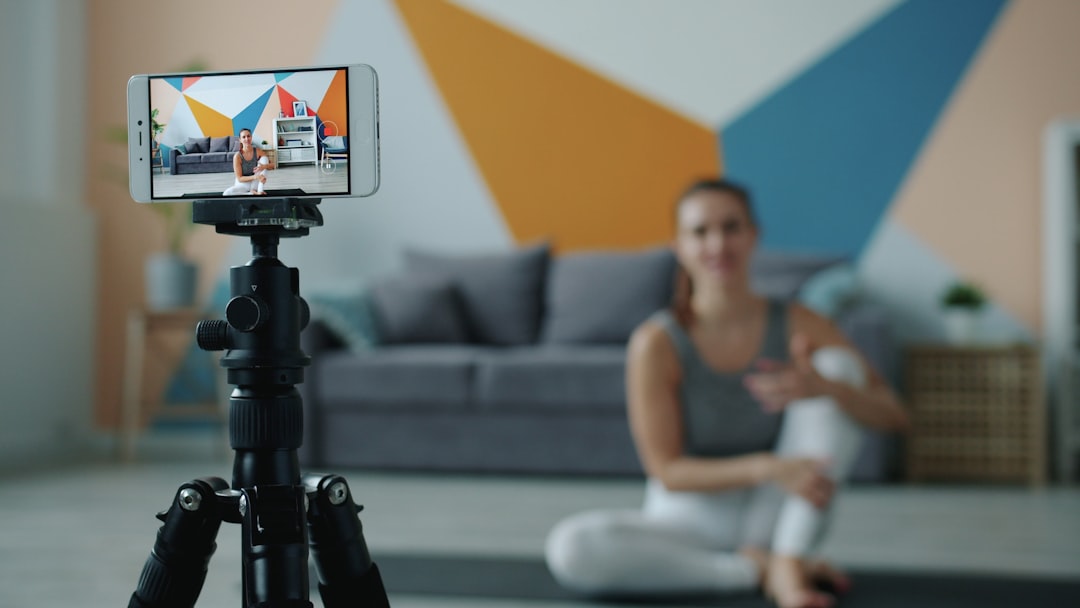
Your iPhone probably has a better camera than the webcam built into your Mac. In fact, Apple now makes it surprisingly easy to use your iPhone as a high-quality webcam for video calls, livestreams, online classes, presentations, and recordings. With Continuity Camera, your Mac can automatically detect your nearby iPhone and use its rear camera system as if it were a standard webcam—often with sharper detail, better color, and smarter framing than a built-in laptop camera.
TLDR: If your iPhone and Mac support Continuity Camera, make sure both devices are signed in with the same Apple ID, have Wi-Fi and Bluetooth enabled, and are near each other. Open a video app on your Mac, choose your iPhone as the camera source, and mount the phone so the rear camera faces you. You can also use effects like Center Stage, Portrait mode, Studio Light, and Desk View depending on your iPhone model.
Why Use an iPhone as a Webcam?
Table of Contents
Mac webcams have improved over the years, but the iPhone’s camera hardware is still in a different league. Modern iPhones use larger sensors, better lenses, advanced image processing, and computational photography features that make video look more polished in everyday lighting. If you regularly attend Zoom calls, record tutorials, teach remotely, create content, or interview for jobs online, using your iPhone as your Mac webcam can make a noticeable difference.
The biggest advantage is image quality. Your iPhone’s rear camera usually captures more detail, handles low light better, and creates more natural colors than a built-in MacBook camera. You also get useful software features, such as background blur and automatic framing, without needing to buy a separate webcam.
Another benefit is convenience. Once set up, Continuity Camera works wirelessly and often appears automatically in compatible apps. You do not need to install third-party drivers, download complicated utilities, or connect capture cards. For many people, it is the easiest webcam upgrade available.

What You Need Before Getting Started
Before you try to use your iPhone as a webcam, make sure your devices meet Apple’s requirements. In general, you need a Mac running macOS Ventura or later and an iPhone running iOS 16 or later. Both devices should be signed in to the same Apple ID with two-factor authentication enabled.
You should also turn on Wi-Fi and Bluetooth on both devices. Even if you plan to connect your iPhone with a cable, these features help your Mac recognize the phone and maintain the Continuity connection. Your iPhone should be near your Mac, locked or resting idle, and positioned so the rear cameras face you.
Here is a quick checklist:
- Compatible Mac: A Mac running macOS Ventura or newer.
- Compatible iPhone: An iPhone running iOS 16 or newer.
- Same Apple ID: Both devices signed in to the same account.
- Two-factor authentication: Enabled for your Apple ID.
- Wi-Fi and Bluetooth: Turned on for both devices.
- Continuity Camera: Enabled on your iPhone.
- A stable mount: Recommended for the best angle and safety.
To confirm Continuity Camera is enabled on your iPhone, go to Settings > General > AirPlay & Continuity, then make sure Continuity Camera is turned on. On some iOS versions, the wording may vary slightly, but the setting is usually found in the same general area.
How to Set Up Your iPhone as a Webcam
The setup process is simple once your devices are ready. First, place your iPhone near your Mac and make sure the screen is locked or not actively being used. The rear camera should face you, because Continuity Camera uses the iPhone’s main camera system rather than the front selfie camera.
Next, open a video app on your Mac. This could be FaceTime, Zoom, Microsoft Teams, Google Meet in a browser, QuickTime Player, or many other apps that allow you to choose a camera source. In the app’s camera or video settings, look for your iPhone’s name in the list of available cameras. Select it, and your Mac should begin using the iPhone as the webcam.
In FaceTime, for example, you can click the Video menu in the menu bar and choose your iPhone under the camera options. In Zoom, open Settings, go to Video, and select your iPhone from the camera dropdown menu. In Google Meet, click the settings icon, choose Video, and select the iPhone as the camera.
If everything is working correctly, your iPhone may show a message indicating that it is connected to your Mac. While the iPhone is being used as a webcam, you generally cannot use it normally unless you pause or disconnect the camera session.
Use a Mount for the Best Results
You can technically prop your iPhone against a book, monitor, or desk lamp, but a proper mount makes the experience much better. A secure mount keeps the camera steady, aligns the lens with your face, and prevents your phone from falling during a meeting. Apple and third-party accessory makers offer mounts designed to attach an iPhone to the top of a MacBook display or external monitor.
For the most natural look, place the iPhone close to eye level. If it is too low, viewers will see an unflattering upward angle. If it is too high, you may appear disconnected from the conversation. Try to position the camera so you can look near the lens while still seeing the other person on your Mac screen.

Lighting matters too. Even though the iPhone handles low light well, you will get better results if your face is softly lit from the front. Avoid sitting with a bright window directly behind you, because that can make your face look dark. A desk lamp, window light from the side, or a small video light can make your image look much more professional.
How to Use Continuity Camera Effects
One of the most interesting parts of using your iPhone as a Mac webcam is access to Apple’s video effects. These can be controlled from your Mac, usually through Control Center. During a video call, click the Control Center icon in the menu bar, choose Video Effects, and you may see options such as Center Stage, Portrait, Studio Light, and Desk View.
Center Stage automatically keeps you framed as you move. This is useful if you gesture while speaking, stand at a whiteboard, or shift around during a call. It can also adjust the frame when more than one person is visible.
Portrait mode softly blurs your background, helping you stand out and making a messy room less distracting. It is not perfect, especially around hair or transparent objects, but it works well for most calls.
Studio Light brightens your face and slightly darkens the background, creating a more balanced, polished look. It can be especially helpful in dim rooms or offices with overhead lighting.
Desk View uses the iPhone’s ultra-wide camera to show a top-down view of your desk while still showing your face. This is excellent for demonstrations, unboxings, sketching, handwriting, crafting, or showing physical objects during a call. Availability depends on your iPhone model, and it works best when the phone is mounted above your display.
Wireless vs. Wired: Which Should You Use?
Continuity Camera is designed to work wirelessly, and for most people that is the most convenient option. You can simply mount your iPhone, open your video app, and select the camera. Wireless use keeps your desk cleaner and makes the feature feel almost automatic.
However, using a cable has advantages. A wired connection can help keep your iPhone charged during long meetings and may improve reliability if your wireless environment is crowded. If your call lasts several hours, plugging the iPhone into your Mac or a charger is a smart idea. Video streaming uses battery power, and the iPhone can become warm during extended use.
If you notice lag, dropped connections, or the iPhone disappearing from the camera list, try connecting it with a USB cable. Also make sure the cable supports data transfer, not just charging.
Using Your iPhone Webcam in Popular Apps
Most modern Mac video apps work with Continuity Camera, but the exact menu names vary. The key is to find the app’s camera selection menu and choose your iPhone.
- FaceTime: Open FaceTime, click Video in the menu bar, then select your iPhone.
- Zoom: Go to Settings > Video, then choose your iPhone from the camera menu.
- Microsoft Teams: Open Settings > Devices, then choose your iPhone under camera.
- Google Meet: Click the settings icon, select Video, and choose your iPhone.
- QuickTime Player: Start a new movie recording, click the arrow next to the record button, and select your iPhone as the camera.
QuickTime is especially useful if you want to record a short video, create a tutorial, or test your camera quality before joining a meeting. You can also use apps like OBS Studio for more advanced recording or livestreaming setups, as long as the app recognizes your iPhone as a camera source.
Troubleshooting Common Problems
If your iPhone does not appear as a camera option, start with the basics. Confirm that both devices are updated, signed in to the same Apple ID, and have Wi-Fi and Bluetooth enabled. Move the iPhone closer to the Mac and make sure it is not already being used by another app or device.
Restarting both devices can solve many connection issues. You can also toggle Continuity Camera off and on again in iPhone settings. If you are using a VPN, firewall, or strict network security tool, temporarily disable it to see whether it is interfering with the connection.
If the image freezes or looks delayed, try using a wired connection. Close unnecessary apps on your Mac, especially those using video, screen recording, or heavy processing power. Also check your video app’s settings to make sure it has permission to access the camera and microphone.
Audio can be handled separately. You may use the iPhone microphone, your Mac’s built-in microphone, AirPods, or an external USB mic. For the best sound, a dedicated microphone or earbuds with a mic often provide clearer audio than relying on a device across the desk.
Privacy and Practical Tips
Using your iPhone as a webcam is generally secure because it is built into Apple’s Continuity system and tied to your Apple ID. Still, it is wise to pay attention to which apps have camera access. On your Mac, check System Settings > Privacy & Security > Camera to review permissions.
For a more professional appearance, clean your iPhone camera lens before important calls. Fingerprints and dust can make the image look hazy. You should also enable Do Not Disturb or a Focus mode if you do not want notifications distracting you, even though the iPhone is not being used in the usual way during webcam mode.
Finally, think about your background. A great camera will not help much if the scene behind you is cluttered or distracting. A tidy shelf, plain wall, plant, or softly lit room can make your video feel more intentional.
Final Thoughts
Using your iPhone as a webcam for your Mac is one of the easiest ways to improve your video quality without buying new camera gear. With Continuity Camera, the setup is fast, the image quality is impressive, and the extra features make video calls feel more dynamic. Whether you are joining daily work meetings, recording lessons, streaming, or catching up with family, your iPhone can instantly turn your Mac into a better video communication setup.
The best part is that you probably already own everything you need. Add a reliable mount, improve your lighting, choose your iPhone in your favorite video app, and you are ready to look sharper and more professional on your next call.
