

Reading on a Kindle device is designed to be comfortable, flexible, and highly customizable. Whether someone is using a basic Kindle, a Kindle Paperwhite, or the Kindle app on a tablet, adjusting the font size and text display can dramatically improve the reading experience. From enlarging text for better visibility to switching fonts for a more personalized feel, Kindle offers a range of tools that make digital reading adaptable to individual preferences.
TLDR: Adjusting Kindle font size and text display is simple and can be done directly from the reading screen. Users can change font size, style, boldness, margins, spacing, and screen brightness to improve comfort and readability. These settings are available on both Kindle devices and Kindle apps, though the menus may vary slightly. Customizing text display helps reduce eye strain and makes long reading sessions more enjoyable.
Why Adjusting Kindle Font and Display Settings Matters
Table of Contents
Not all readers have the same visual preferences or needs. Some prefer larger text to reduce eye strain, while others enjoy compact text that fits more words on a single page. Lighting conditions, reading posture, and even time of day can influence how text should appear on a screen.
Kindle’s adjustable display settings allow readers to:
- Increase or decrease font size for visibility
- Change font style for readability
- Adjust line spacing and margins for layout comfort
- Modify brightness and warmth (on supported devices)
- Enable bold text for clearer letters
These customizable features make Kindle devices suitable for readers of all ages and visual abilities.
How to Change Font Size on a Kindle Device
Changing the font size on a Kindle eReader is straightforward. While exact options may differ slightly between models, the general steps remain consistent.
Step-by-Step Instructions
- Open a book on the Kindle device.
- Tap near the top of the screen to bring up the menu toolbar.
- Select the “Aa” icon (Display Settings).
- Navigate to the Font tab.
- Use the slider or select a number to adjust the font size.
The preview will update instantly, allowing readers to see the changes before closing the settings window.
Most Kindle devices offer multiple font size levels, ranging from very small to extremely large. This flexibility ensures that users with mild visual strain or more significant vision challenges can find a comfortable setting.
How to Change Font Style on Kindle
Beyond size, Kindle allows readers to modify the actual typeface used in books. The font style impacts how letters appear and can influence reading speed and comfort.
Available Font Options
Though selection may vary by device and book, common font choices include:
- Bookerly – A default Kindle font designed for digital reading
- Amazon Ember – A clean, modern sans-serif option
- Caecilia – A classic and slightly more traditional typeface
- OpenDyslexic – Designed to assist readers with dyslexia
To change the font style:
- Open a book.
- Tap the top of the screen.
- Select the “Aa” icon.
- Under the Font tab, choose a preferred font type.
The selected font will apply immediately to the book being read.
Adjusting Boldness and Text Weight
Some Kindle devices allow users to increase the boldness of the text. This feature is particularly helpful for readers who find thin fonts difficult to see clearly.
To adjust boldness:
- Open the Display Settings menu.
- Under the Font tab, find the Bold option.
- Move the slider to increase or decrease text thickness.
Bold adjustments can make a dramatic difference in readability without increasing font size. For many readers, this is a preferred solution.
Changing Layout Settings: Margins, Spacing, and Orientation
Text display extends beyond font style and size. Kindle allows readers to refine layout settings for a more comfortable reading experience.
Line Spacing
Line spacing determines how much space appears between each line of text. Increasing spacing makes text less crowded, while decreasing spacing allows more content per page.
Margins
Margins control how much blank space appears on the sides of the screen. Narrow margins show more text, while wider margins create a cleaner visual frame.
Screen Orientation
Many Kindle devices and all Kindle apps allow switching between portrait and landscape mode. Landscape mode can be especially useful for users who increase font size significantly.
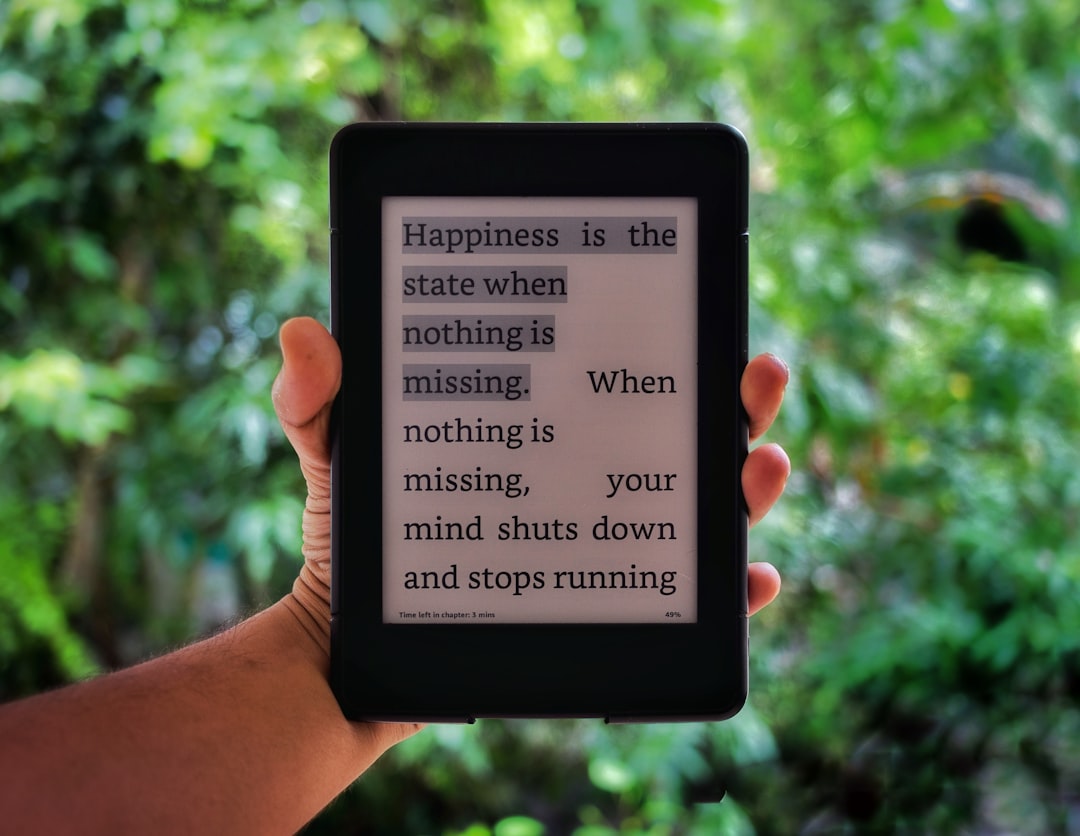
These settings can typically be found under the Layout tab within the Display Settings menu.
Adjusting Brightness and Warmth
Although brightness is not technically a font feature, it strongly influences how text appears on screen. Kindle devices with built-in lighting enable users to adjust brightness levels easily.
To Adjust Brightness:
- Swipe down from the top of the screen (on compatible devices), or
- Tap the top menu and adjust the brightness slider.
Some newer models also offer a warm light feature that reduces blue light exposure. Warmer tones can make nighttime reading easier on the eyes.
For readers who frequently switch between day and night reading, experimenting with brightness and warmth settings can greatly enhance comfort.
How to Change Font Size in the Kindle App
The Kindle app on iOS and Android follows a similar process but with minor interface differences.
Steps for Mobile Devices:
- Open a book in the Kindle app.
- Tap the center of the screen.
- Select the “Aa” icon or the display settings option.
- Adjust font size using the slider.
- Modify font type, spacing, and theme as needed.
The Kindle app often includes additional background themes such as:
- White
- Black (dark mode)
- Sepia
Dark mode can be particularly useful for reading in low-light environments.
Tips for Improving Kindle Readability
While changing font size is the most common adjustment, combining multiple settings can optimize the reading experience.
- Combine slightly larger text with increased line spacing to prevent visual crowding.
- Try OpenDyslexic if traditional fonts feel difficult to process.
- Use warm light in the evening for reduced glare.
- Experiment with boldness before increasing font size.
- Adjust margins if lines feel too long or too cramped.
It may take a few minutes of experimentation, but the right settings can significantly improve reading speed and comfort.
Troubleshooting Common Issues
Font Settings Not Changing
Some older books or specially formatted content may limit customization. If settings appear locked, the book’s publisher may have restricted certain layout functions.
Font Too Large and Text Cuts Off
Switching to landscape mode or reducing margins can help accommodate larger font sizes.
Settings Not Saving
Kindle devices typically remember preferences per book. If settings revert, ensure the device firmware is up to date.
Conclusion
Changing Kindle font size and text display settings is one of the most powerful ways to personalize a digital reading experience. With adjustable fonts, layout controls, brightness options, and themes, Kindle devices and apps offer flexibility that traditional print books cannot match. Whether someone is trying to reduce eye strain, improve accessibility, or simply experiment with aesthetics, Kindle’s customization tools make it easy to tailor each book to individual comfort levels.
Frequently Asked Questions (FAQ)
1. Can font size be changed on every Kindle model?
Yes, nearly all Kindle devices and Kindle apps allow font size adjustments, though menu layouts may vary slightly.
2. Does changing font size affect all books?
Font size changes usually apply to the current book. Some settings may carry over, but certain books with fixed layouts may limit adjustments.
3. What is the best font for readability?
Many readers prefer Bookerly for general reading. However, OpenDyslexic is often recommended for those with dyslexia.
4. Can users install custom fonts on Kindle?
Some newer Kindle models support adding custom fonts by uploading compatible font files to the device’s font folder.
5. How does dark mode help?
Dark mode displays light text on a dark background, which may reduce glare and improve comfort in low-light settings.
6. Is it possible to reset display settings to default?
Yes, users can return to the Display Settings menu and manually select default font styles, sizes, and layout options.
7. Why does the font look different in some books?
Publishers sometimes embed specific fonts in eBooks, which can slightly alter appearance and limit customization choices.
