

When an MSI monitor or graphics card suddenly stops working through DisplayPort, it can disrupt productivity, gaming sessions, or professional workflows. The issue may present as a “No Signal” message, flickering screen, black display, or intermittent connection drops. Fortunately, in most cases, the problem is not a hardware failure but a configuration or compatibility issue that can be resolved with the right troubleshooting steps.
TL;DR: If an MSI DisplayPort connection is not working, start by checking the cable and port for damage, then restart and power cycle both the monitor and PC. Update graphics drivers and ensure the correct input source is selected on the monitor. In many cases, switching cables, adjusting monitor settings, or resetting firmware resolves the issue. Persistent problems may indicate a faulty cable, outdated driver, or hardware defect.
Common Reasons Why MSI DisplayPort Is Not Working
Table of Contents
There are several reasons why DisplayPort connectivity may fail on an MSI monitor or GPU. Understanding these causes helps users pinpoint the problem faster.
- Loose or damaged DisplayPort cable
- Incorrect monitor input selection
- Outdated or corrupted graphics drivers
- Faulty GPU or monitor port
- DisplayPort version incompatibility
- Power saving or deep sleep settings
DisplayPort technology is designed to provide high resolution and refresh rates, but it can be sensitive to signal interruptions, especially when using lower-quality cables or adapters.
Step-by-Step Fixes for MSI DisplayPort Issues
1. Check the DisplayPort Cable
The most common culprit behind DisplayPort problems is the cable itself. Users should:
- Disconnect and firmly reconnect both ends of the cable.
- Inspect for visible damage such as bent pins or frayed wires.
- Test with a different certified DisplayPort cable.
If possible, a high-quality VESA-certified DisplayPort 1.4 or 2.0 cable is recommended for MSI gaming monitors.
2. Verify Input Source on the MSI Monitor
Sometimes the issue is as simple as the wrong input being selected. MSI monitors often have multiple input options:
- DisplayPort
- HDMI
- USB-C (depending on the model)
Using the monitor’s on-screen display menu, users should manually select DisplayPort as the input source. Auto-detect does not always switch correctly.
3. Power Cycle the Monitor and PC
A full power reset can resolve signal handshake issues between the graphics card and monitor. The recommended process is:
- Turn off the PC.
- Turn off and unplug the MSI monitor.
- Disconnect the DisplayPort cable.
- Wait 3–5 minutes.
- Reconnect everything and power on.
This resets the connection and clears temporary firmware glitches.
4. Update Graphics Drivers
Outdated or corrupted GPU drivers frequently cause display errors. Users should:
- Open Device Manager in Windows.
- Locate Display Adapters.
- Update drivers automatically or install the latest version from NVIDIA or AMD.
It is often better to download drivers directly from the manufacturer’s official website rather than relying solely on automatic updates.
5. Check for Windows Display Settings Conflicts
If the PC detects another display but does not show an image, the problem may lie in display configuration:
- Right-click on the desktop and choose Display Settings.
- Click Detect if no monitor appears.
- Ensure the correct resolution and refresh rate are selected.
Setting a refresh rate that exceeds the monitor’s supported specification can result in a blank screen.
6. Disable Deep Sleep Mode
Some MSI monitors feature a Deep Sleep option, which may interfere with DisplayPort wake-up signals. Users can access the monitor’s OSD menu and disable this setting.
Additionally, disabling Windows Fast Startup may prevent handshake conflicts after shutting down the system.
7. Try a Different DisplayPort Version or Adapter
Compatibility mismatches can occur if:
- An older GPU connects to a newer MSI high refresh monitor.
- An adapter such as DP to HDMI is used.
Whenever possible, avoid adapters and use a direct DisplayPort-to-DisplayPort cable. Adapters often cause signal degradation.
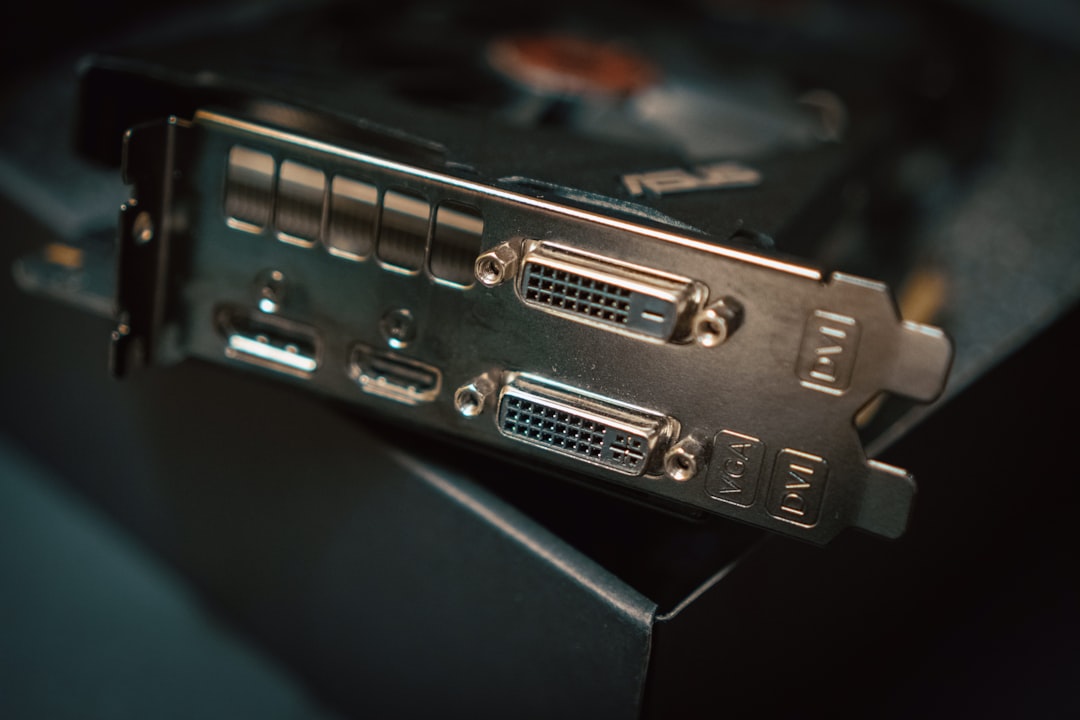
8. Inspect the Graphics Card Port
If multiple DisplayPort outputs are available on the MSI GPU, users can test another port. Dirt, debris, or internal damage can affect individual ports while others function normally.
9. Reset the MSI Monitor to Factory Settings
A factory reset can resolve firmware-related issues. Users should:
- Open the monitor OSD menu.
- Locate the Reset or Factory Reset option.
- Confirm the reset.
This restores default settings that may have been misconfigured.
Advanced Troubleshooting Steps
Update Monitor Firmware
Some MSI monitors support firmware updates via USB. Firmware updates can fix connectivity bugs and compatibility issues. Users should consult MSI’s official support page for their specific model.
Test With Another Monitor or PC
To isolate the issue, users can:
- Connect the MSI monitor to another PC using DisplayPort.
- Connect the current PC to a different monitor.
If the monitor works elsewhere, the problem likely lies with the PC or GPU. If not, the monitor may require servicing.
Check BIOS Settings
In rare cases, BIOS configuration may interfere with graphics output. Users should:
- Ensure primary display is set to PCIe (for dedicated GPUs).
- Disable integrated graphics if necessary.
Incorrect BIOS display settings may prevent proper signal transmission.
When Hardware Replacement Might Be Necessary
If all troubleshooting steps fail, hardware failure becomes more likely. Potential replacement scenarios include:
- A defective DisplayPort cable.
- A damaged MSI monitor DisplayPort input.
- A failing graphics card port.
Before replacing components, testing each piece independently ensures an accurate diagnosis.
Preventing Future DisplayPort Issues
To minimize future connection problems, users should follow best practices:
- Use certified DisplayPort cables.
- Avoid excessive unplugging and plugging.
- Keep GPU drivers updated.
- Avoid low-quality adapters.
- Ensure proper PC shutdown procedures.
Maintaining clean ports and using surge protection also extends hardware lifespan.
Frequently Asked Questions (FAQ)
Why does my MSI monitor say “No Signal” on DisplayPort?
This usually occurs due to a loose cable, incorrect input selection, outdated drivers, or a signal handshake problem. Power cycling and switching cables often fix it.
Does DisplayPort support higher refresh rates than HDMI?
Yes. DisplayPort generally supports higher refresh rates and resolutions, especially for gaming monitors. However, compatibility depends on the cable version and GPU.
Can a bad cable really stop DisplayPort from working?
Absolutely. Faulty or non-certified cables are among the most common causes of signal failure and flickering.
Why does my DisplayPort work after restarting but not after sleep?
This often relates to deep sleep settings or handshake issues. Disabling monitor deep sleep mode or Windows Fast Startup may resolve the problem.
Should I update my MSI monitor firmware?
If a firmware update is available for your model and you are experiencing compatibility issues, updating can resolve known bugs.
Is DisplayPort better than HDMI for MSI gaming monitors?
For high refresh rate gaming, DisplayPort is generally preferred because it supports advanced features like G-Sync or FreeSync at higher bandwidths.
By systematically checking cables, settings, drivers, and hardware components, most MSI DisplayPort issues can be resolved without professional repair. In the majority of cases, the fix is simple and inexpensive, often requiring nothing more than a certified cable replacement or a driver update.
