

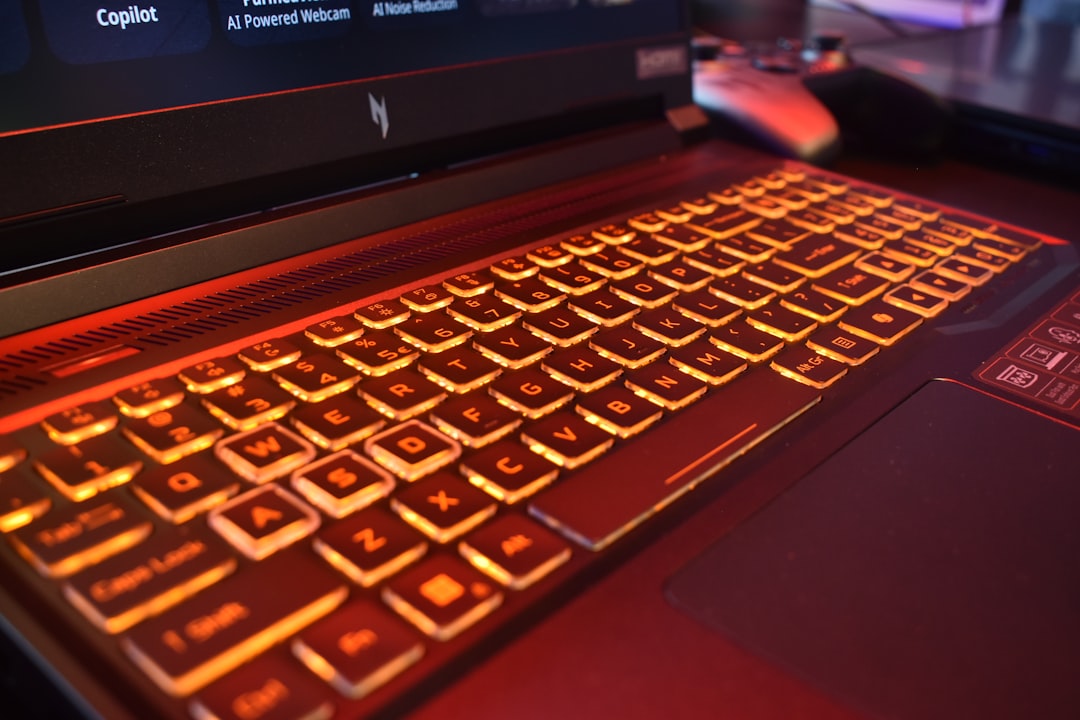
Custom RGB lighting has become one of the most exciting features of modern mechanical keyboards, and the Arzopa K81 is no exception. With vibrant illumination, multiple lighting effects, and app-based customization, this keyboard allows you to create a setup that feels uniquely yours. Whether you prefer subtle white backlighting or a dynamic rainbow wave across the keys, understanding how to configure your RGB lighting properly can dramatically enhance your typing or gaming experience.
TL;DR: The Arzopa K81 keyboard allows you to customize RGB lighting through its dedicated software app. After installing and connecting the keyboard properly, you can adjust brightness, choose lighting effects, and build custom color profiles. The app gives you advanced tools like per-key customization and reactive lighting modes. With just a few steps, you can transform your keyboard’s look to match your gaming setup or workspace aesthetic.
Understanding RGB Lighting on the Arzopa K81
Table of Contents
The Arzopa K81 features full RGB backlighting, meaning each key can display millions of color combinations. Unlike basic backlit keyboards that offer only a few preset colors, RGB keyboards like the K81 allow individual key customization, animations, and synchronized effects.
Key lighting features typically include:
- Static color mode – One consistent color across the keyboard
- Breathing effect – Slow fading in and out
- Wave or ripple modes – Animated movement across keys
- Reactive typing mode – Keys light up as pressed
- Custom profiles – Personalized layout with per-key configuration
While hardware shortcuts may allow quick lighting adjustments, the dedicated application unlocks the full potential of the keyboard.
Step 1: Download and Install the Arzopa K81 Software
Before you can begin customizing your RGB lighting, you’ll need the official Arzopa K81 configuration software.
Installation process:
- Visit the official Arzopa support website.
- Navigate to the K81 keyboard product page.
- Download the latest version of the configuration software.
- Install the software by following the on-screen instructions.
- Restart your computer if prompted.
Tip: Always ensure you download software compatible with your operating system (Windows or macOS, if supported).
Step 2: Connect Your Keyboard Properly
The Arzopa K81 may support wired, Bluetooth, or 2.4GHz wireless modes depending on the model. For software configuration, a wired USB connection is usually recommended to ensure full recognition.
To connect:
- Plug the USB cable directly into your computer (avoid USB hubs during setup).
- Switch the keyboard to wired mode if it has multiple connectivity options.
- Launch the Arzopa configuration software.
- Wait for the application to detect the keyboard automatically.
If the keyboard is not detected, unplug and reconnect it, or restart the software.
Step 3: Navigating the App Interface
Once the app recognizes your keyboard, you’ll see the main dashboard. Most RGB keyboard apps follow a similar layout, and the K81 software is designed to be user-friendly.
Common sections include:
- Lighting Effects Tab
- Custom Mode Editor
- Brightness and Speed Controls
- Profile Management
- Firmware Update Section
The main display often shows a visual layout of the keyboard, allowing you to click specific keys when customizing individual lighting.
Step 4: Selecting Preset RGB Effects
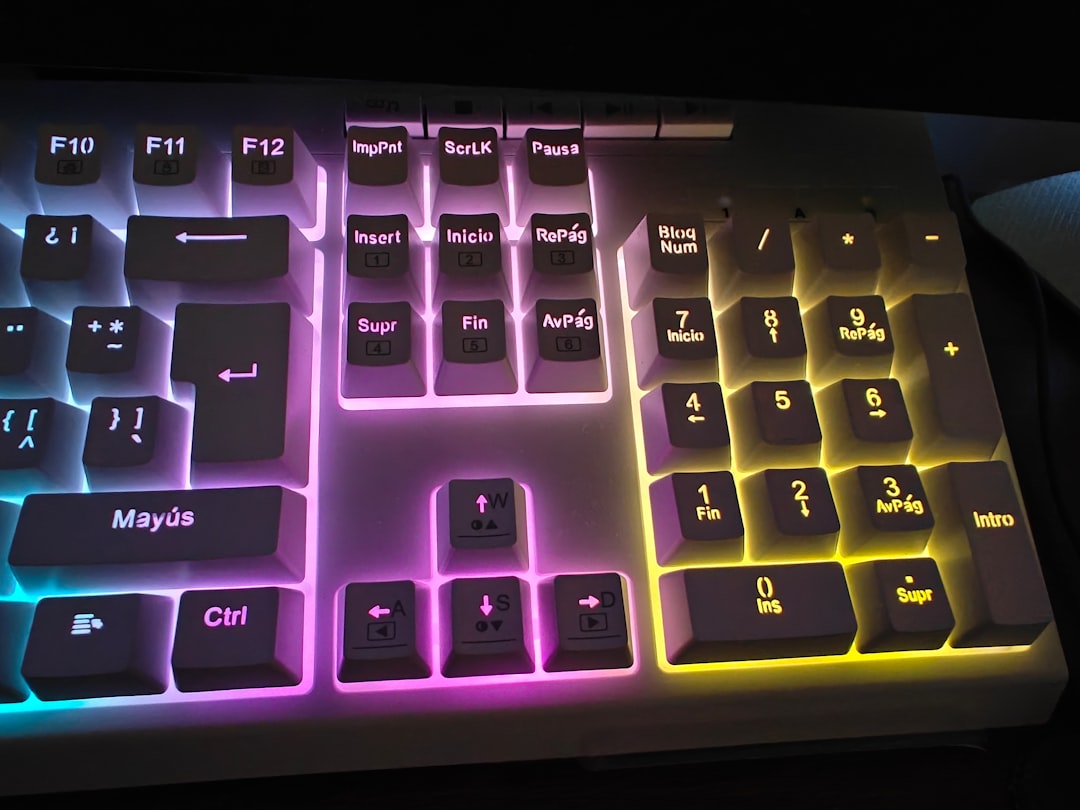
If you’re looking for a quick change, preset lighting modes are the easiest way to update your keyboard’s appearance.
To apply preset effects:
- Open the Lighting Effects tab.
- Browse the available presets (Wave, Breathing, Static, Reactive, etc.).
- Select your desired effect.
- Adjust brightness and animation speed sliders.
- Click Apply or Save.
Most users start with preset modes before diving into advanced customization.
Step 5: Customizing Per-Key RGB Lighting
This is where the Arzopa K81 truly shines. Per-key lighting allows you to assign specific colors to individual keys—perfect for gamers, coders, and creatives.
How to customize each key:
- Go to the Custom Mode or Advanced tab.
- Select a blank profile slot.
- Click on a key in the visual layout.
- Choose a color from the color picker.
- Repeat for additional keys.
- Save the configuration.
Popular customization ideas:
- Highlight WASD keys in a different color for gaming.
- Color-code shortcut keys (Copy, Paste, Save) for productivity.
- Create a gradient effect from left to right.
- Match key colors to your PC’s internal RGB lighting.
Per-key lighting gives your keyboard personality and functional advantages.
Step 6: Adjusting Brightness and Effects Speed
RGB lighting isn’t just about color—it’s also about intensity and motion.
You can usually adjust:
- Brightness level – Ideal for darker rooms or reducing eye strain.
- Animation speed – Control how fast wave or ripple effects move.
- Direction – Change the flow of wave patterns.
If you use your keyboard in an office setting, lowering brightness can provide a more professional appearance while still retaining style.
Step 7: Saving and Managing Profiles
The Arzopa K81 software often supports multiple lighting profiles. This feature is incredibly useful if you switch between activities.
Example profile setups:
| Profile Name | Best For | Lighting Style | Key Highlights |
|---|---|---|---|
| Gaming Mode | FPS and Action Games | Reactive Red Wave | WASD, Shift, Ctrl highlighted |
| Work Mode | Office Tasks | Soft White Static | Shortcut keys highlighted blue |
| Creative Mode | Design Editing | Gradient Spectrum | Tool keys color grouped |
Switching between saved profiles is often as easy as selecting them within the app or using built-in keyboard shortcuts.
Step 8: Using Hardware Shortcuts (Optional)
Even without opening the app, you can usually change basic RGB settings via keyboard shortcuts.
Common combinations may include:
- FN + Arrow Keys – Adjust brightness
- FN + Specific Key – Cycle lighting modes
- FN + +/- – Change speed
Keep in mind that hardware shortcuts may be limited compared to the full customization available in the software.
Troubleshooting Common RGB Issues
If you experience issues while trying to change RGB lighting, here are some quick fixes:
Keyboard Not Detected:
- Reconnect via USB.
- Restart the application.
- Check for firmware updates.
Lighting Not Saving:
- Make sure you click “Apply” before closing the app.
- Ensure onboard memory is enabled if supported.
Software Crashing:
- Reinstall the application.
- Run as administrator.
- Disable conflicting RGB control software (such as motherboard lighting apps).
Why Customize RGB Lighting?
RGB lighting isn’t just about aesthetics—it offers real functional benefits:
- Improved visibility in low-light environments
- Faster reaction times with highlighted game keys
- Personal expression through colors and effects
- Desk setup cohesion with matching peripherals
With proper setup, your keyboard becomes more than just a typing device—it becomes a personalized tool that enhances your workflow and entertainment.
Final Thoughts
Learning how to change RGB lighting on the Arzopa K81 keyboard is easier than it might first appear. By installing the official software, connecting the keyboard properly, and experimenting with presets and custom modes, you can unlock a wide range of lighting effects tailored to your needs.
Whether you want a calm white glow for productivity or a vibrant reactive pattern for gaming, the Arzopa K81 provides flexible and powerful lighting customization. Take the time to explore the software’s features, create multiple profiles, and fine-tune your brightness and speed settings. Once configured properly, your keyboard won’t just function beautifully—it will look stunning doing it.
Now that you know the full process, you’re ready to transform your Arzopa K81 into a centerpiece of your desktop setup.
