

Technology is incredibly convenient—until it’s not. For parents and light sleepers alike, the Hatch app has become a nighttime essential, helping to control sleep routines with sound machines, night lights, and other smart functions. But what happens when the app suddenly stops working? Before tossing your phone across the room or braving an all-nighter without white noise, don’t panic. There are several fixes you can try before giving up on your beloved Hatch app.
TL;DR
Table of Contents
If your Hatch app is not working, it could be due to outdated software, connectivity issues, or a syncing problem with your device. Start by checking your Wi-Fi and Bluetooth settings, then try updating or reinstalling the app. Restarting both your mobile device and the Hatch product often resolves common issues. If all else fails, Hatch’s customer support can walk you through a more advanced fix.
Common Problems with the Hatch App
The Hatch app is designed to sync seamlessly with Hatch devices like the Rest, Rest+, and Rest Mini. Still, even the best apps can experience hiccups. Here are some of the most frequently reported issues:
- The app won’t connect to the Hatch device
- The app crashes or won’t open at all
- The sound settings or schedules are missing or won’t save
- Bluetooth or Wi-Fi connection errors
- Updates don’t install properly
Understanding which category your problem falls into can make the troubleshooting process far easier and faster.
Quick Fixes to Try First
Before getting into deep troubleshooting mode, start with these simple yet effective solutions:
- Restart Your Device: Turn off your phone or tablet for a few seconds, then power it back on. Do the same with your Hatch device.
- Check Internet and Bluetooth: Make sure you’re connected to a strong Wi-Fi signal and that Bluetooth is enabled. The Hatch app needs both to function properly.
- Force Close the App: On both Android and iOS devices, you can force close the Hatch app and reopen it to refresh its processes.
- Update the Hatch App: Go to your app store and make sure you’re using the latest version. Older versions may not function properly with updated Hatch firmware.
- Reinstall the App: Deleting and reinstalling the app can clear corrupted data and resolve persistent issues.
Resolving Connection Issues
If your phone and your Hatch device just won’t seem to find each other, the issue likely lies in connectivity. Here’s how to address that:
1. Re-Pair via Bluetooth
Hatch devices primarily use Bluetooth to initiate the setup. If the devices are not pairing:
- Ensure the Hatch device is close to your phone (within 3 feet).
- Turn off Bluetooth and turn it back on to reset the signal.
- Go to your phone’s Bluetooth settings and remove any previously connected Hatch devices, then try reconnecting through the app.
2. Check Wi-Fi Compatibility
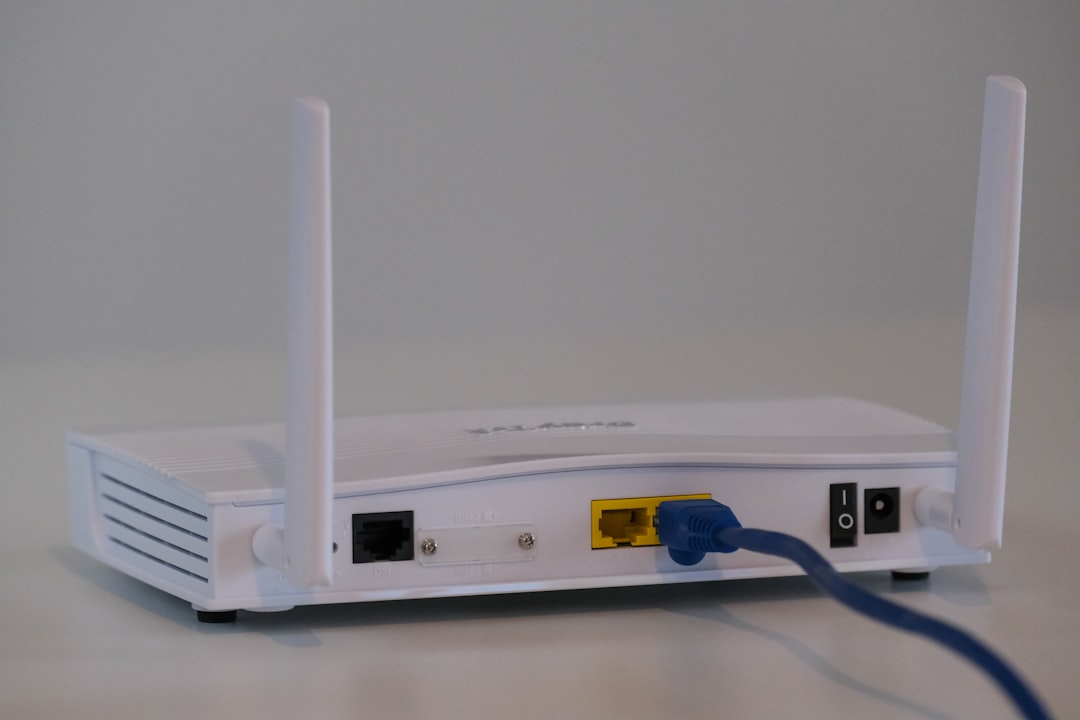
Some Hatch models work only on 2.4GHz Wi-Fi networks, not 5GHz. Confirm your router settings support 2.4GHz or switch networks temporarily during setup.
Also, avoid using mobile hotspots or public Wi-Fi for setup, as signal instability can affect operation.
App Sync Not Working Correctly?
If your Hatch app seems to “forget” your settings or schedules, synchronization might be the culprit. Here’s how to fix it:
- Enable Background Data: Ensure the app can run and sync in the background. This is especially important for Android users, who may have battery optimization features that restrict background activity.
- Restart Sync: Open the app, go to your device settings, and tap “Sync Now” if available. This often forces a full resync between the app and your Hatch device.
- Double-Check Timezone Settings: If your device is scheduled to start or end at unusual times, it could be a timezone glitch. Correct your phone’s timezone settings and reschedule accordingly.
If these steps don’t work, consider removing your Hatch device from the app and setting it up like new. Sometimes, a fresh start resolves lingering sync problems.
App Crash or Lag Fixes
Is your Hatch app freezing, crashing, or refusing to open? Follow these tips:
- Clear Cache (Android): Go to Settings > Apps > Hatch > Storage > Clear Cache. This removes temporary data that might be causing instability.
- Free Up Space: Make sure your phone has enough free storage. Insufficient memory can often cause apps to misbehave.
- Use a Different Device: Try installing the app on another phone or tablet. This can help identify whether the issue is with your account or your device.
Firmware Update Issues
Your Hatch device occasionally receives firmware updates to improve performance and security. If your app or device is stuck during an update, do the following:
- Give It Time: Some updates can take several minutes. Don’t interrupt the process by unplugging the device.
- Reconnect to Wi-Fi: Ensure stable internet access throughout the update. A dropped connection may lead to incomplete downloads.
- Try Again Later: If the update fails, wait a few hours and try again. Sometimes, server-side issues resolve with time.
In rare cases, you may need to factory reset your Hatch device and start the setup from scratch. Be sure to back up any schedules or sound preferences manually before doing so.
When to Contact Support
If none of the above solutions work, it might be time to reach out to Hatch’s customer support. Here’s what to have ready:
- Model of your Hatch device
- Exact issue (e.g., won’t connect, sync failure, app crash)
- App and firmware version (found in Settings > Device Info)
- Steps you’ve already tried
Having this information handy can speed up your troubleshooting experience with support and prevent redundancy. Hatch’s team is known for being responsive and helpful, especially if your product is under warranty.
Pro Tips to Keep Your Hatch App Running Smoothly
Once everything’s working again—or if you just want to avoid future issues—follow these quick tips:
- Enable auto-updates for the Hatch app.
- Make sure your device firmware is current.
- Avoid using battery saver or “light app” modes.
- Use a secure, stable Wi-Fi network with strong password protection.
- Restart your device and the app periodically to prevent performance degradation.
Final Thoughts
The Hatch app is a powerful tool for managing sleep routines across all ages. Though frustrating when it doesn’t work as expected, most issues stem from common connectivity or software bugs that are usually easy to fix. By following the strategies above, you’ll likely get your Hatch app running in no time—and get back to the peaceful nights it promises.
As with all tech gadgets, keeping your apps and devices up to date and understanding how they interact with your network environment is essential. Fortunately, with a bit of patience (and maybe a cup of coffee), you’ll be back to uninterrupted sleep routines in a matter of minutes.
