

Over time, even the fastest computers can begin to feel sluggish. Applications take longer to launch, storage space mysteriously shrinks, and system performance dips without obvious cause. Often, the culprit isn’t failing hardware but accumulated digital clutter—temporary files, cached data, leftover installation remnants, and fragmented system traces. This is where disk cleanup tools like Wise Disk Cleaner play a crucial role in maintaining both speed and storage efficiency.
TLDR: Disk cleanup tools such as Wise Disk Cleaner help remove unnecessary files, free up storage space, and improve overall system performance. They eliminate temporary files, clear browser caches, and sometimes offer disk defragmentation features. Regular use can keep your computer running smoothly and extend its lifespan. Choosing the right tool depends on your specific needs, operating system, and desired features.
In this article, we’ll explore how disk cleanup tools work, why they matter, and which popular options stand out in 2026.
Why Disk Cleanup Matters More Than You Think
Table of Contents
Every time you browse the web, install software, update your system, or even open certain applications, your computer creates temporary and residual files. While these files often serve a short-term purpose, many remain on your drive long after they’re needed.
Common types of unnecessary files include:
- Temporary system files
- Browser cache and cookies
- Log files
- Recycle Bin contents
- Leftover files from uninstalled programs
Individually, these files may seem insignificant. Collectively, however, they can occupy gigabytes of space and subtly degrade performance. Low disk space also affects how your system manages virtual memory, which in turn impacts speed.
Regular disk cleaning ensures that your operating system has breathing room to function optimally.
How Disk Cleanup Tools Like Wise Disk Cleaner Work
Disk cleanup tools automate the detection and removal of unnecessary files. Instead of manually browsing system folders—a risky and time-consuming task—these tools scan predefined areas known to accumulate junk.
Wise Disk Cleaner, for example, typically performs:
- Common file cleanup – Removes temporary files, recent file lists, and system cache.
- Advanced cleanup – Allows users to scan custom file types and specific locations.
- System slimming – Deletes redundant Windows components and update backups.
- Disk defragmentation – Reorganizes fragmented data blocks for HDDs.
The primary benefit is automation paired with clarity. Users can see exactly how much space will be recovered and decide what to remove.
Top Disk Cleanup Tools in 2026
While Wise Disk Cleaner is a popular option, it’s not alone. Several powerful competitors offer similar or expanded features. Below are some of the most recognized tools.
1. Wise Disk Cleaner
Known for being lightweight and user-friendly, Wise Disk Cleaner appeals to users who want a straightforward interface without system complexity.
Best for: Beginners and intermediate users seeking free, efficient cleanup.
2. CCleaner
One of the most established names in system maintenance, CCleaner offers broader tools beyond disk cleaning, including registry cleaning and startup management.
Best for: Users wanting an all-in-one PC optimization tool.
3. BleachBit
Popular among more technical users, BleachBit is open-source and offers deep cleaning options across multiple platforms.
Best for: Advanced users who want detailed control.
4. Windows Storage Sense
Built into modern Windows systems, Storage Sense automatically removes temporary files and empties the recycle bin based on user settings.
Best for: Users who prefer not to install third-party software.
Comparison Chart
| Tool | Ease of Use | Free Version | Advanced Cleanup | Extra Features | Best For |
|---|---|---|---|---|---|
| Wise Disk Cleaner | Very Easy | Yes | Yes | Disk Defrag, System Slimming | Everyday Users |
| CCleaner | Easy | Yes (Limited) | Yes | Registry Cleaner, Startup Manager | Full Optimization |
| BleachBit | Moderate | Yes | Extensive | Secure File Shredding | Advanced Users |
| Storage Sense | Very Easy | Built-in | Limited | Automatic Scheduling | Minimalists |
Performance Improvements: What to Expect
It’s important to set realistic expectations. Disk cleanup tools won’t transform an aging laptop into a cutting-edge gaming machine. However, they can provide noticeable improvements.
Benefits often include:
- Faster boot times due to fewer startup conflicts
- Improved application launch speed
- More available storage space
- Reduced system errors caused by temporary file corruption
If your system previously had very low free space (under 10%), clearing storage can significantly stabilize performance.
HDD vs SSD: Does Disk Cleanup Help Both?
Yes—but in slightly different ways.
On HDDs (Hard Disk Drives):
- Cleanup reduces file clutter.
- Defragmentation can improve read/write speed.
- Physical head movement is optimized.
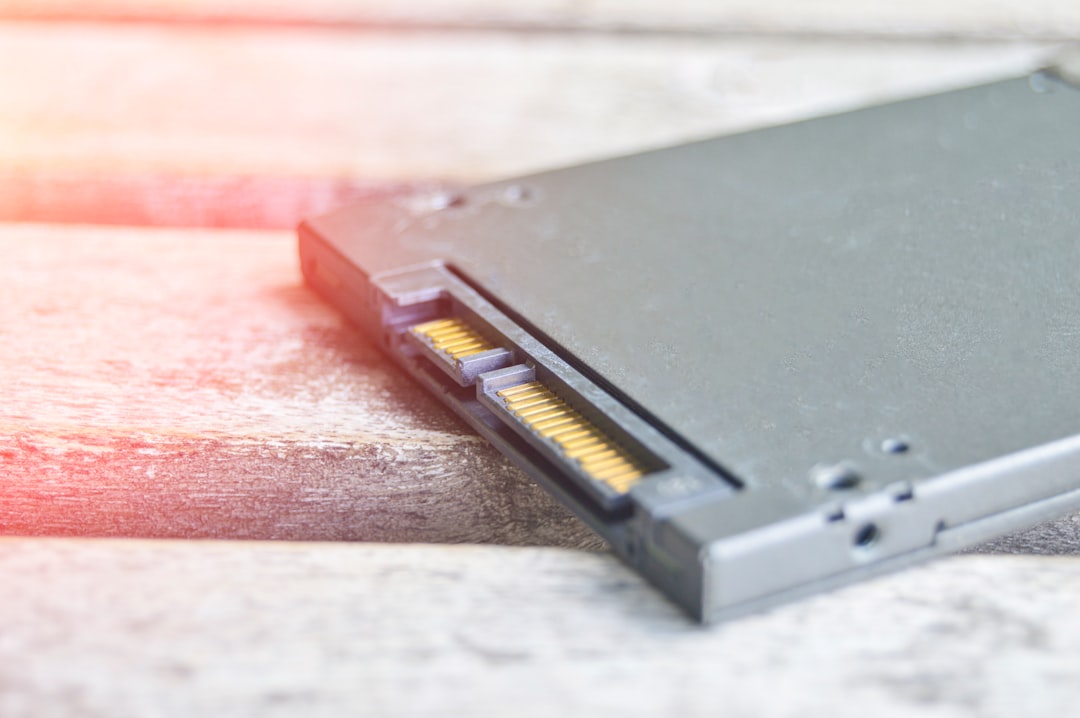
On SSDs (Solid State Drives):
- Defragmentation is generally unnecessary.
- Cleanup frees space, improving wear leveling efficiency.
- Maintaining free space extends longevity.
Most modern tools automatically adjust features based on your drive type.
How Often Should You Use Disk Cleanup Tools?
The answer depends on usage habits.
- Heavy users (frequent downloads, gaming, media editing): Once per week.
- Average users: Every two to four weeks.
- Light users: Once every two months.
Many tools allow scheduled automatic cleaning, which removes the need for manual intervention.
Security and Privacy Benefits
Beyond performance, disk cleanup tools contribute to digital privacy. Clearing:
- Browser history
- Download traces
- Cached login sessions
- Log files
reduces the risk of sensitive information being accessed by other users on the same machine.
Some tools even offer secure file shredding, which overwrites deleted files to prevent data recovery.
Risks and Precautions
While disk cleanup software is generally safe, users should be careful with advanced options.
Best practices include:
- Review scan results before deleting
- Avoid registry cleaning unless necessary
- Create restore points before deep system cleaning
- Download tools from official sources only
Deleting essential system files—even accidentally—can cause instability. Fortunately, reputable tools clearly categorize safe-to-delete items.
Free vs Paid Versions: Is It Worth Upgrading?
Free versions of tools like Wise Disk Cleaner are often sufficient for most users. However, premium versions may offer:
- Real-time monitoring
- Automatic background cleaning
- Scheduled maintenance
- Priority customer support
If you manage multiple computers or rely heavily on system performance for work, premium features may justify the cost.
The Bigger Picture: Disk Cleanup as Part of System Maintenance
Disk cleanup should be viewed as one component of overall digital hygiene. For optimal performance, combine it with:
- Regular software updates
- Antivirus scanning
- Startup program management
- Driver updates
- Hardware monitoring
Think of disk cleaning as decluttering your digital workspace. Just as a tidy desk improves productivity, a clean disk supports smoother computing.
Final Thoughts
Disk cleanup tools like Wise Disk Cleaner provide a simple yet powerful way to maintain speed and storage efficiency. With minimal effort, users can reclaim gigabytes of wasted space, reduce system strain, and improve overall responsiveness. While they are not miracle workers, consistent use supports a healthier, more stable computing environment.
In a world where we constantly create, download, stream, and install, digital clutter is inevitable. Fortunately, with the right cleanup tools, it doesn’t have to slow you down.
