

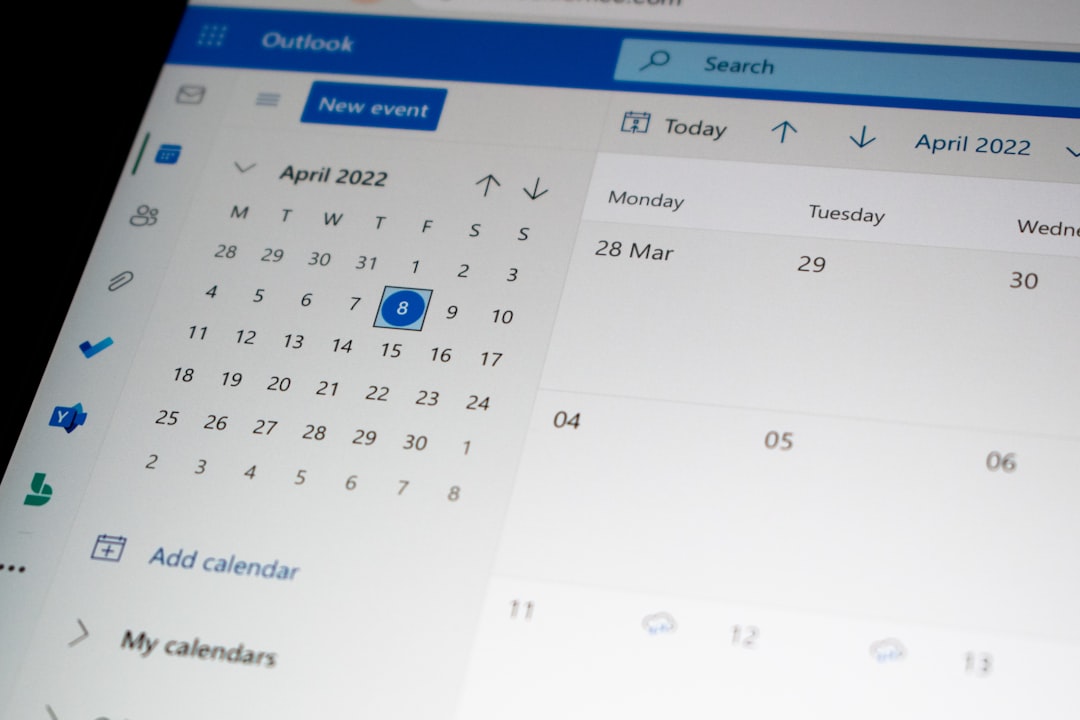
Managing time efficiently can feel like an uphill battle, especially when days are filled with meetings, emails, and constant distractions. Fortunately, tools like Google Calendar offer more than just a way to schedule events—they can become powerful allies in boosting your daily productivity. With the right techniques, you can turn Google Calendar from a basic scheduler into a sophisticated time management system.
TLDR
Table of Contents
Google Calendar is more than just a place to keep track of meetings—it can be a cornerstone of personal productivity. By using advanced features such as time blocking, color coding, integrations, and reminders, you can streamline your workflow and focus on what truly matters. Try embedding habits, setting recurring tasks, and using notifications smartly. These hacks can help you work smarter, not harder.
1. Master the Art of Time Blocking
Time blocking is a powerful productivity technique where you schedule time to focus on specific tasks or projects. Instead of a scattered to-do list, create events on your calendar as dedicated blocks for things like writing, coding, or meetings. This helps reduce task-switching and ensures deep focus.
- Start with your priorities: Schedule your most important tasks early in the day when your energy is highest.
- Leave buffer time: Add 10-15 minute gaps between blocks for breaks and unexpected events.
- Be realistic: Avoid overloading your calendar; a jam-packed schedule sets you up for stress and failure.
To create a time block, simply add an event, give it a clear title (e.g., “Work on Report”), choose the right time slot, and set it to repeat if needed.
2. Use Color Coding to Categorize Your Life
Color coding is a visual method to make your calendar easier to scan and organize. Assign different colors to categories like Work, Personal, Health, or Learning. This lets you immediately grasp how balanced your day or week looks.
Here are a few suggestions for color assignments:
- Red: Important or urgent work tasks
- Blue: Meetings or calls
- Green: Health and fitness activities
- Orange: Personal events or family time
- Purple: Learning and development

Using colors not only adds clarity but also gives you the mental satisfaction of a well-structured day.
3. Set Smart, Tiered Reminders
One reminder might not be enough. Google Calendar allows multiple notifications, and this feature can be a lifesaver. Set tiered reminders to give you both a heads-up and a last-call alert.
Example: For an important meeting, set one email reminder 24 hours in advance, and one pop-up 10 minutes before it starts. This combination ensures preparation and promptness.
To modify reminders:
- Click on the event
- Edit the event by clicking the pencil icon
- Use the “Add notification” button to customize alerts
4. Utilize Recurring Events for Habits and Routines
Building new habits is easier when they’re automatically scheduled. Use recurring events in Google Calendar to lock in time for daily, weekly, or monthly habits.
Ideas for recurring events:
- Morning routine: Schedule a 30-minute block labeled “Morning Planning” each weekday
- Exercise: Set a recurring run for every Tuesday and Thursday at 7 AM
- Weekly review: Schedule a Friday afternoon session to reflect and plan the coming week
This approach creates consistency and ensures that good habits are built into your day by default.
5. Share Calendars for Better Collaboration
When working with a team, shared calendars reduce endless back-and-forth messages about availability. You can share your calendar with colleagues, assistants, or family and choose permissions such as view-only or full-edit access.
Steps to share your Google Calendar:
- On the left side, hover over your calendar and click the three dots
- Select “Settings and sharing”
- Scroll to “Share with specific people” and add emails
This not only improves collaboration but also helps others understand your availability without interruptions.
6. Use Tasks and Google Keep for Detailed Planning
Sometimes an event only tells part of the story. For more detailed breakdowns, use Google Tasks to attach to-do lists directly to your calendar. If you need more robust notes, Google Keep works great alongside Calendar for attaching detailed plans or ideas to time blocks.
To access these tools:
- Click the right-side panel in your Calendar view to open Tasks or Keep
- Create new tasks with specific due dates and times, which show up on your calendar automatically
This layered approach allows high-level scheduling alongside focused to-do tracking.
7. Take Advantage of Multiple Calendars
Google Calendar allows you to create multiple calendars all under one account. This is helpful for filtering events and shifting focus when needed. For instance, you might have separate calendars for:
- Work
- Personal
- Freelance or side projects
- Kids’ activities or family life
You can toggle each calendar on or off depending on your current focus, which declutters your view and helps avoid distraction.
8. Integrate with Other Tools
Google Calendar integrates with many third-party applications that can massively boost productivity. Tools like:
- Zapier – Automate actions like syncing calendar events to task managers, sending reminders via Slack, or logging hours to spreadsheets
- Trello – Add Trello due dates directly to your calendar with calendar power-ups
- Calendly – Let others book time with you without back-and-forth emailing
These integrations help eliminate repetition and allow your calendar to act as a productivity hub.
9. Try the Agenda and Day Views for Focus
Switching your calendar view can help your brain focus differently. While the week view is great for planning, the day or agenda view can drill you into the present moment.
When overwhelmed by a busy week, try switching to the day view and tackle one thing at a time. The agenda view shows a compact list of events, which can be helpful when you’re on the go.
10. Make Use of Goals and Appointment Slots
While the “Goals” feature in Google Calendar is being deprecated in some regions, if it’s still available to you, it can be useful for self-improvement activities like learning a new language or meditating. Alternatively, use recurring events tagged as goals.
Appointment Slots are particularly helpful for consultants, professors, or anyone who meets frequently. You can designate open availability and let others book a slot that works for them.
To use appointment slots:
- Create an event
- Click on “Appointment slots”
- Set duration and share the generated booking link
Final Thoughts
Google Calendar is an incredibly flexible tool, but its true value lies in how you use it. With the right hacks—like time blocking, color coding, effective reminders, and tool integrations—you can create a productivity powerhouse that aligns with your goals and minimizes wasted time.
The key is consistency. As with any productivity method, it takes discipline and reflection to tune your calendar into something that works uniquely for you.
Start implementing just a couple of these strategies today, and witness how your day can shift from chaotic to controlled—one scheduled event at a time.
