

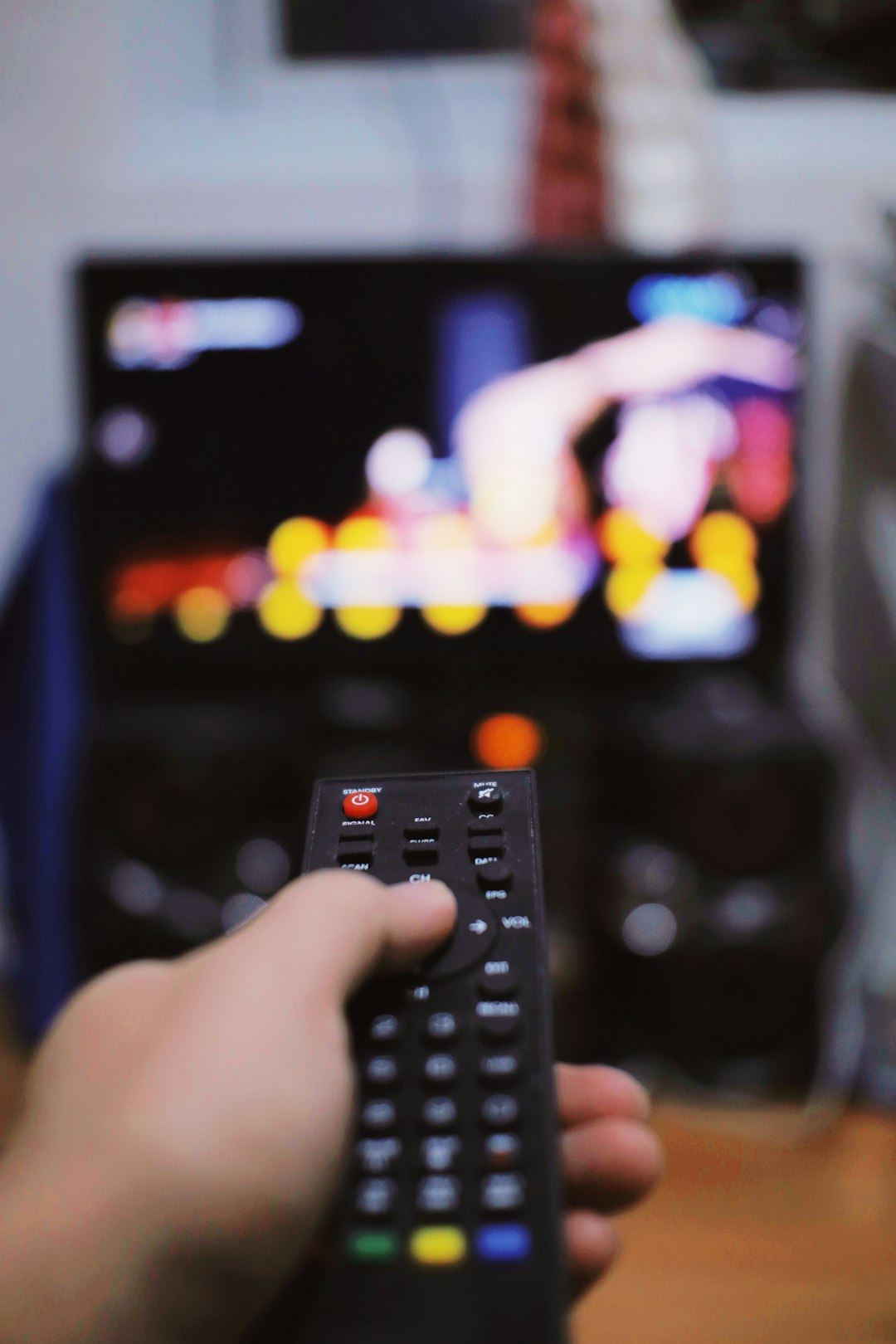
Pairing your Xumo remote with your TV is an essential step in getting the most out of your streaming experience. Without proper pairing, you may be limited to basic navigation and miss out on convenient features such as power control, volume adjustment, and input switching. Fortunately, the setup process is straightforward when you follow the correct steps and understand your remote model.
TLDR: Pairing a Xumo remote to your TV typically involves inserting batteries, turning on your TV, and following on-screen or manual pairing instructions. Most Xumo remotes support automatic pairing, but some require manual code entry. Ensure your TV is powered on and within range during setup. If pairing fails, resetting the remote or checking compatibility usually resolves the issue.
Understanding Your Xumo Remote
Table of Contents
Before beginning the pairing process, it’s important to identify which type of Xumo remote you have. While most versions look similar, pairing steps may vary slightly depending on whether you are using a voice-enabled remote or a standard infrared model.
Common features of Xumo remotes include:
- Power button for TV on and off control
- Volume and mute controls
- Voice control button (on supported models)
- Directional pad and OK/Select button
- Streaming service shortcut buttons
Check the back of the remote or your Xumo device packaging for model information if you are unsure. This detail will help determine whether your pairing process is automatic or manual.
Step 1: Prepare for Pairing
Before you begin pairing, follow these preparation steps to ensure the process goes smoothly:
- Insert fresh batteries into the remote.
- Turn on your TV manually using the TV’s power button.
- If using a Xumo streaming device, ensure the device is connected and powered on.
- Stand within 10 feet of the TV during pairing.
Fresh batteries are especially important. Weak batteries may prevent proper signal transmission and interrupt programming.
Step 2: Automatic Pairing Method
Most Xumo remotes are designed to pair automatically when first powered on. Follow these instructions:
- Turn on your TV.
- Insert the batteries into the Xumo remote.
- Wait for the on-screen pairing prompt to appear.
- Press and hold the Home or OK button (depending on model) for 5–10 seconds.
- Follow the on-screen instructions to confirm pairing.
Once paired, test the remote by adjusting the volume or turning the TV off and back on. If those functions work, your remote is properly connected.
Step 3: Manual Pairing With TV Code
If automatic pairing does not work, you may need to manually program your remote using a TV brand code. Manual pairing is common when connecting the remote to built-in TV controls such as power and volume.
Here’s how to manually pair:
- Turn on your TV.
- Press and hold the Setup button until the LED indicator light turns on.
- Enter the TV brand code using the remote’s number pad.
- If the TV turns off, the code is correct.
- Press Power again to turn the TV back on and confirm functionality.
If the TV does not respond, repeat the process using the next available code for your TV brand.
Where to Find TV Brand Codes
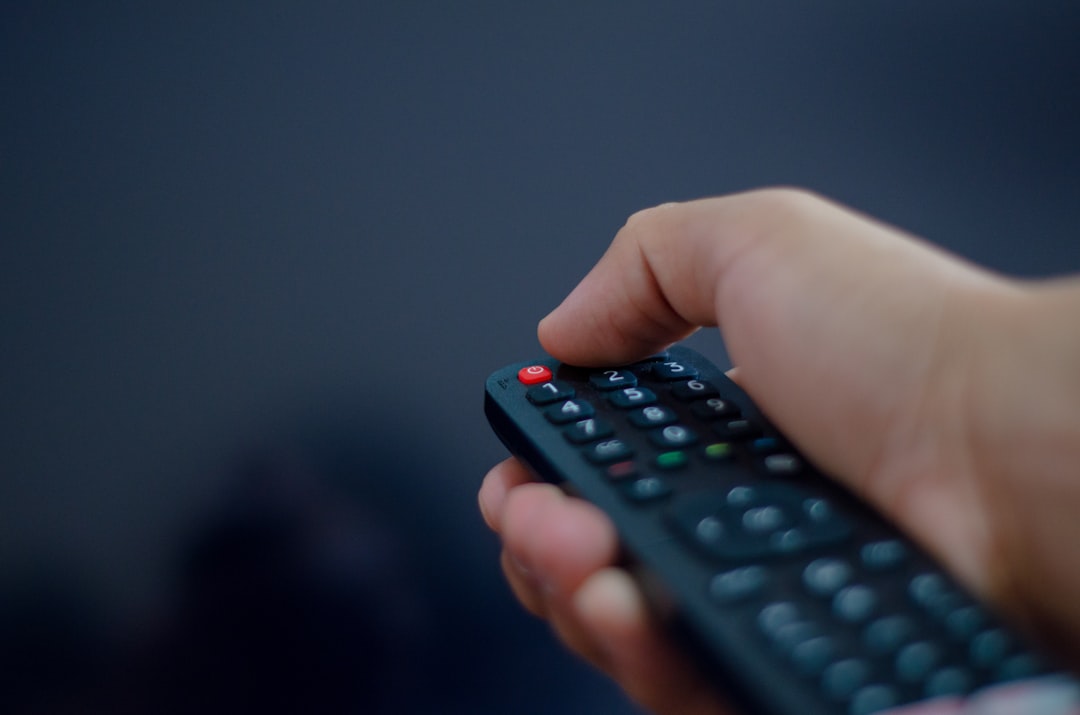
TV codes are typically found in:
- The Xumo remote instruction manual
- The support section of the TV manufacturer’s website
- The Xumo support page
It is advisable to write down the working code for future reference.
Troubleshooting Common Pairing Problems
Even when carefully following instructions, issues can occasionally occur. Below are common problems and their solutions:
- Remote not responding: Replace batteries and ensure they are properly inserted.
- No on-screen pairing prompt: Restart your TV and Xumo device.
- TV does not turn off during manual setup: Try an alternative brand code.
- Volume works but power does not: Re-run pairing process to sync all functions.
If problems persist, consider resetting the remote.
How to Reset a Xumo Remote
- Remove the batteries.
- Press and hold the Power button for 10–15 seconds.
- Reinsert fresh batteries.
- Repeat the pairing process.
Resetting clears temporary memory errors that may block successful pairing.
Infrared vs. Voice Remote Pairing
Understanding the difference between infrared (IR) and voice-enabled remotes can clarify why pairing steps may vary slightly.
| Feature | Infrared Remote | Voice Remote |
|---|---|---|
| Connection Type | Line of sight infrared signal | Bluetooth or RF signal |
| Requires Direct Aim | Yes | No |
| Voice Search | No | Yes |
| Pairing Method | Usually manual code entry | Automatic on screen pairing |
| Range | Short range | Longer range |
If you have a voice remote, ensure Bluetooth pairing is completed through on-screen instructions. Infrared remotes do not require Bluetooth but must be correctly programmed with TV brand codes.
Pairing With Soundbars and Audio Systems
Some users want their Xumo remote to control both their TV and sound system. This usually requires configuring the remote to communicate with the TV first, then adjusting your TV’s audio output settings to external speakers.
For best results:
- Pair the remote with the TV first.
- Connect the soundbar using HDMI ARC or optical cable.
- Enable external speaker control in TV audio settings.
In most setups, the remote will manage volume through the TV’s audio system without additional programming.
Ensuring Long Term Performance
After successful pairing, follow these best practices to maintain optimal remote performance:
- Replace batteries every 6–12 months, even if they appear functional.
- Keep the remote clean and free of debris.
- Avoid dropping the remote, as internal damage can disrupt signals.
- Keep firmware updated on your Xumo device if applicable.
Routine care helps prevent signal interruptions or the need for repeated pairing.
When to Contact Support
If pairing repeatedly fails despite correct procedures, the issue may involve hardware compatibility or a defective remote. Consider contacting support if:
- The LED indicator does not light up.
- The remote fails to respond after reset.
- Multiple valid TV codes do not work.
- The remote frequently disconnects.
Before contacting support, note your remote model number, TV brand, and the steps you have already attempted. Providing this information will help resolve your issue faster.
Final Thoughts
Pairing a Xumo remote with your TV is generally a quick and manageable process. Whether you use automatic pairing or manual code entry, the key is preparation and patience. By ensuring fresh batteries, following each step carefully, and troubleshooting methodically if necessary, you can gain full control over your viewing experience.
With proper setup, your Xumo remote becomes a centralized tool for managing television power, volume, streaming apps, and more—allowing you to enjoy seamless entertainment without juggling multiple remotes.
